

AI Search
AI Text Search lets recruiters find candidates from their database using plain language instead of rigid keyword filters. Type what you are looking for, and Skima AI scans your uploaded profiles, scores every candidate against your requirements, and returns a ranked list instantly.
The search bar is accessible from any page inside Skima AI at the top of the screen.
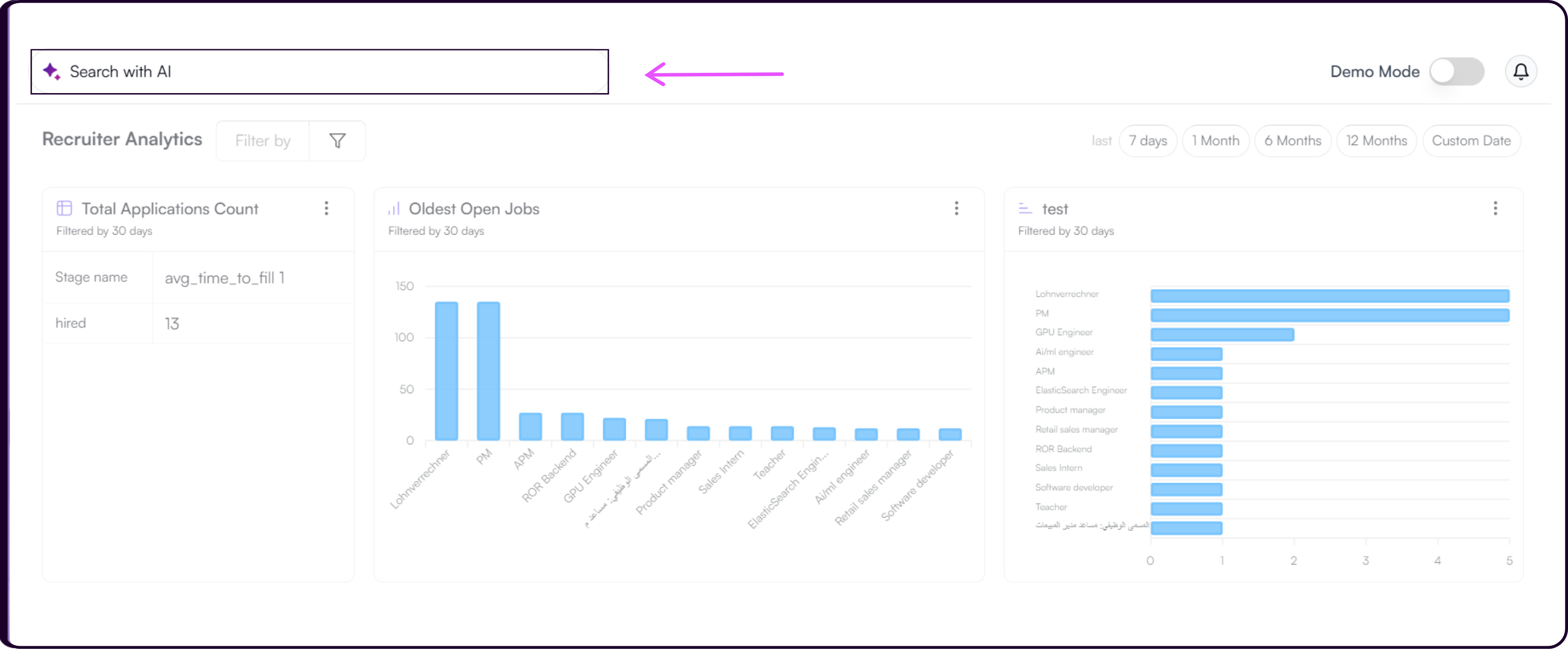
AI Text Search finds and ranks candidates from your existing database. It does not create a job. To screen and score candidates properly, make sure the relevant job with a complete Job Description is already created in Skima AI. As soon as you link a candidate to that job, they will be screened and scored automatically.
Running a Search
Click on the search bar at the top of any page in Skima AI.
Type your candidate requirements in plain language.
Example: Looking for an AI Engineer with minimum 6 years of experience in machine learning, deep learning, and Python. Must have hands-on experience with LLMs and model deployment. Job location - United States.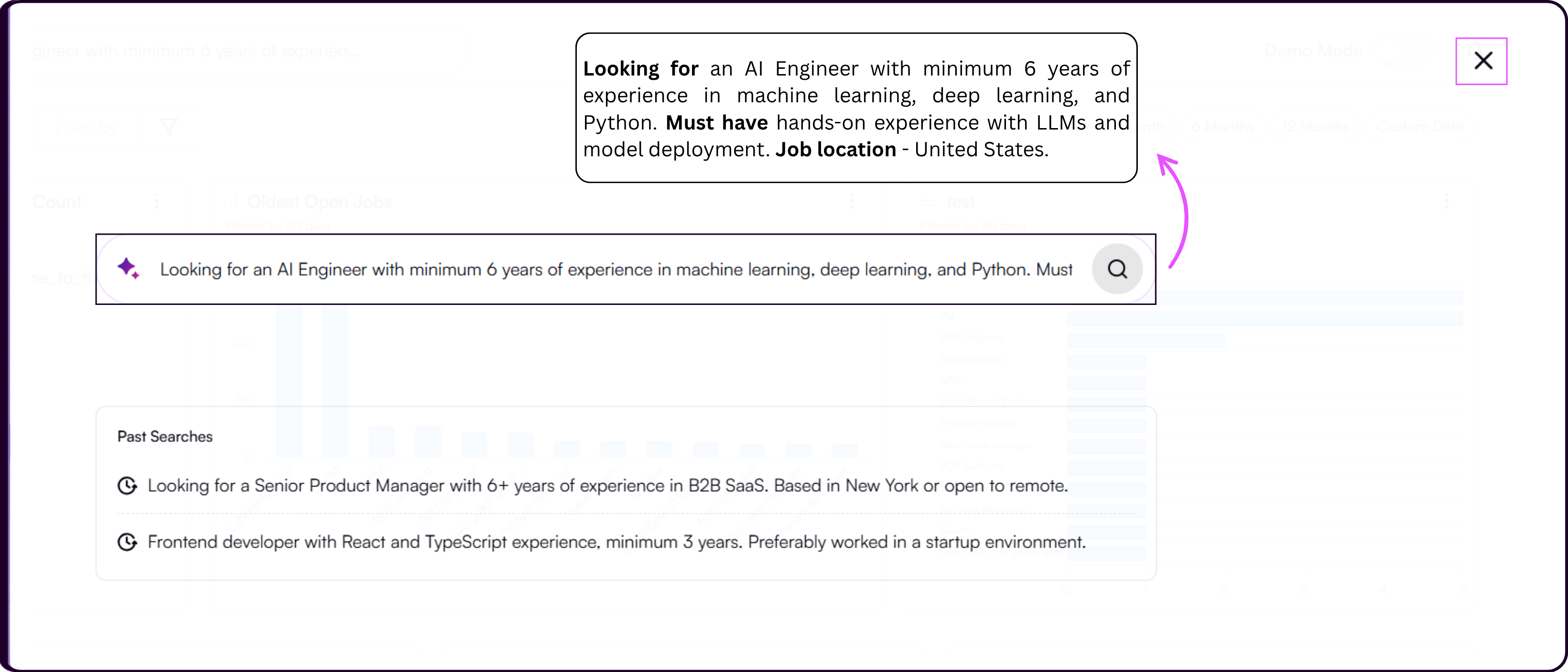
Press Enter. Skima AI will generate a Summary and Requirements on the left panel based on your prompt. If the prompt lacks enough detail, Skima AI will create an ideal summary and requirements as a suggestion to work from.
Skima AI then scans your uploaded candidate database against the summary and requirements. Each candidate receives an AI Matching Score based on their skills, experience, and location relevance. Candidates are ranked from highest to lowest match.
Understanding the Results
Once Skima AI processes your query, the results panel shows:
- A ranked list of candidates by AI Matching Score
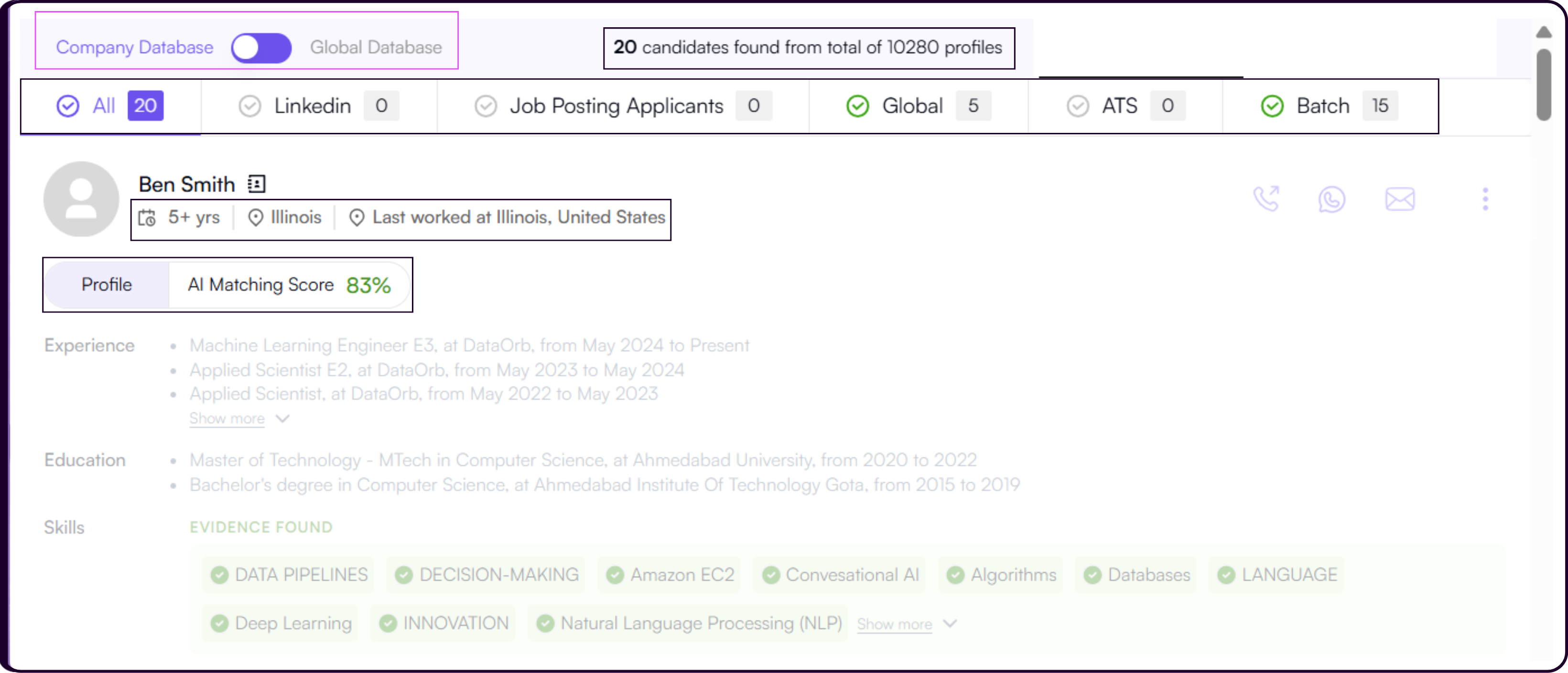
- Each candidate card displays their name, experience in years, location, and last worked at
- Expanding a candidate shows their Profile, AI Matching Score, Experience, Education, Skills with evidence found and not found, and Tags
At the top of the results panel you will see the total count of candidates found from your database, for example 300 candidates found from total of 9920 profiles.
Source Breakdown
Results are broken down by source so you can view candidates from a specific channel. The source tabs show counts for All, LinkedIn, Job Posting Applicants, Global, ATS, and Batch.
Click any tab to filter the list to that source only.
Company Database vs Global Database
By default, Skima AI searches your Company Database. Toggle to Global Database to search for candidates outside your uploaded database.
Global Database sourcing is an additional feature. Reach out to support@skima.ai to learn more about enabling it for your organisation.
Taking Action on Candidates
Contacting a Candidate
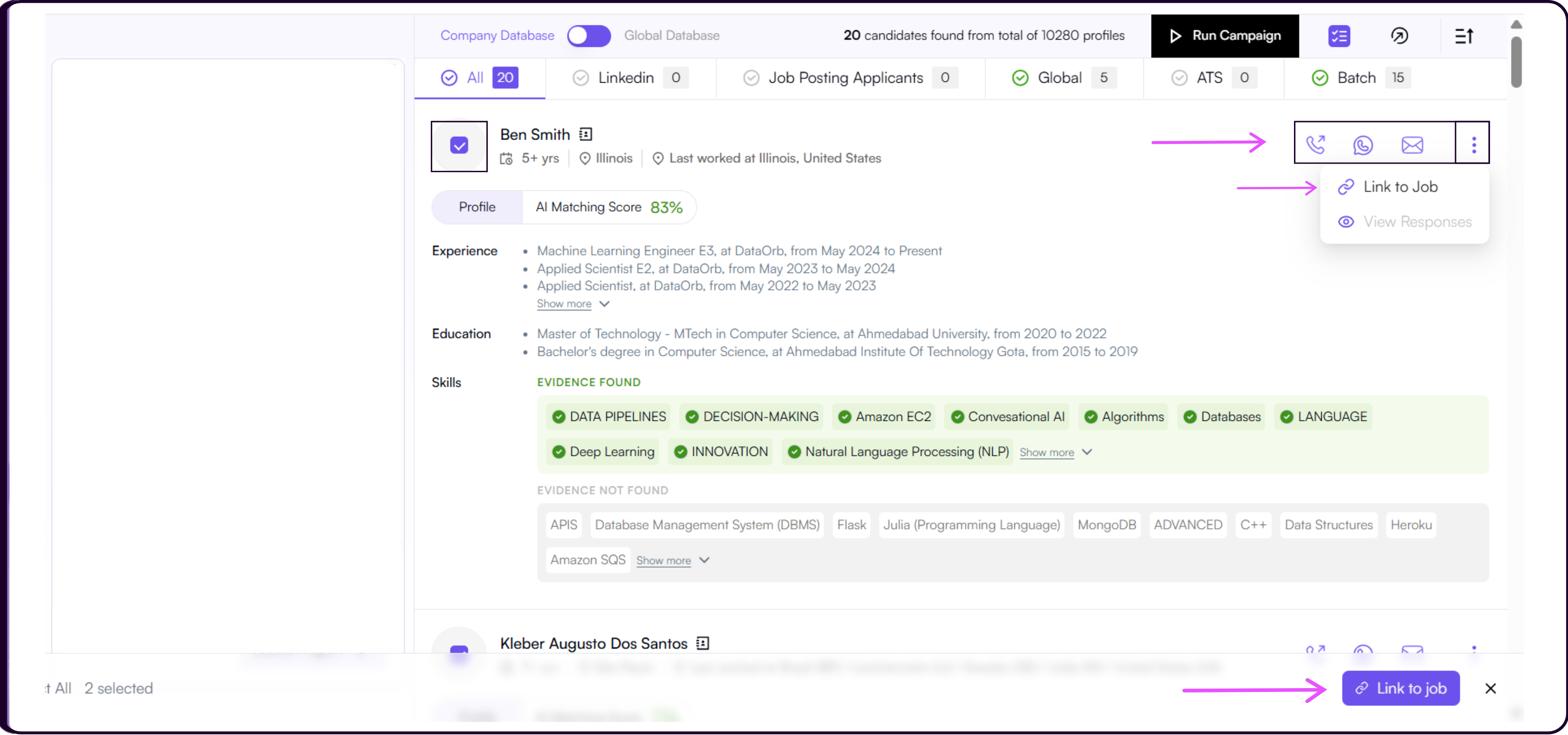
Each candidate card has direct Call, WhatsApp, and Email icons so you can reach out without opening the full profile.
Linking a Candidate to a Job
Click the three-dots menu on any candidate card and select 'Link to Job' to assign that candidate to an existing job. Once linked, the candidate is immediately screened and scored against that job's description.
Bulk Actions
Click the Bulk Edit button to enable checkboxes across all candidate cards. Select the candidates you need and use the 'Link Job' button at the footer to link them all to an existing job at once. You can also select all candidates using the select all checkbox that appears at the footer.
Run Campaign
Click 'Run Campaign' to launch an outreach campaign directly against the candidates surfaced in the current search. Refer to the Campaigns guide for the full campaign setup flow.
Export
Click the Export icon adjacent to the Bulk Edit button to download the current candidate list.
Sort
Use the Sort icon to order the list by AI Matching Score or by Uploaded Date.
Refining Your Search
If the candidates surfaced are not what you expected, the search criteria may need more context. The Summary panel on the left side of the screen is fully editable.
- Click directly on the summary text to edit it.
- Add or adjust your requirements, experience range, location, or any other criteria.
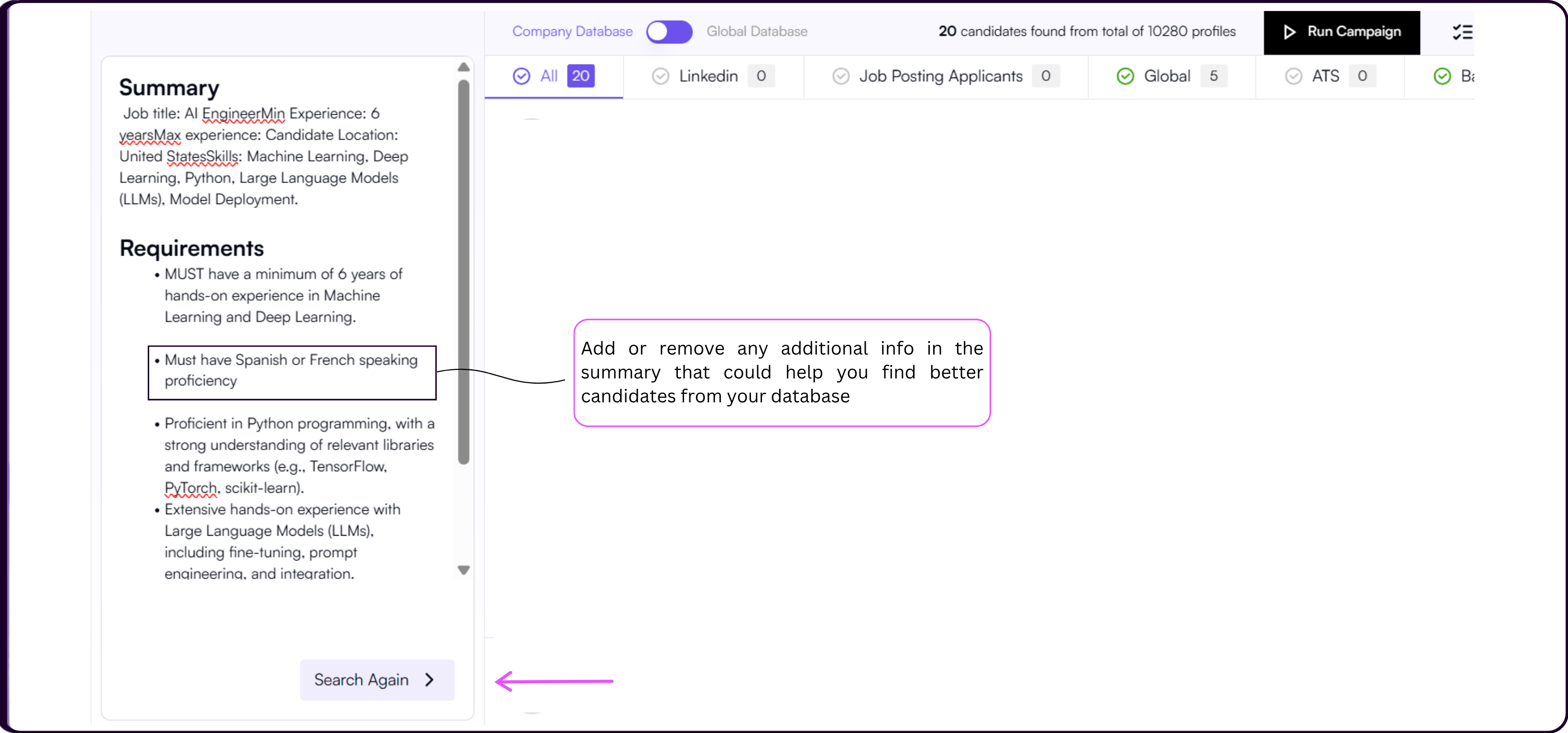
- Click 'Search Again' at the bottom of the summary panel.
Skima AI will re-run the search with the updated criteria and return a refreshed ranked list.
Demo Mode
If you want to explore AI Text Search before uploading your own candidates, toggle 'Demo Mode' on from the top-right corner of the navigation bar. This loads a pre-filled candidate database so you can test searches, review AI scores, and get familiar with the workflow without any setup required.
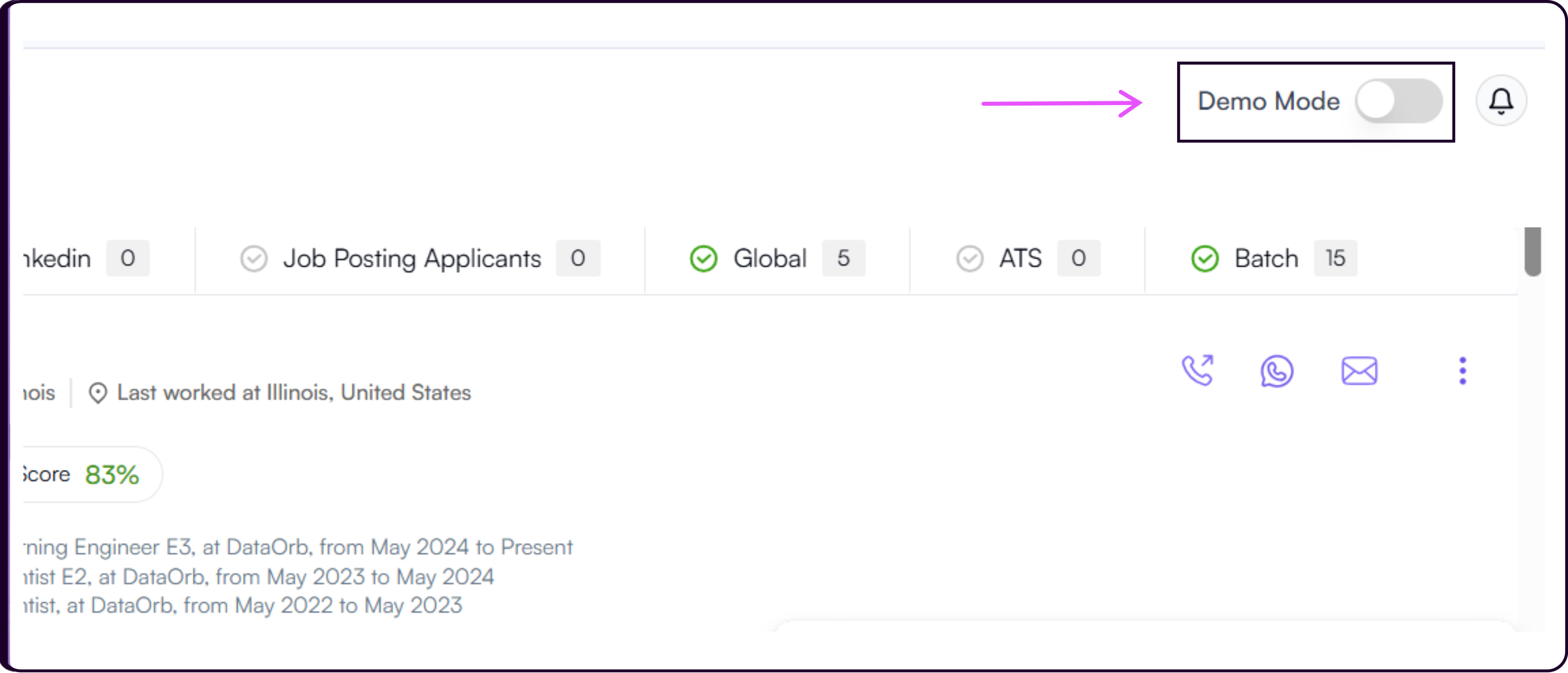
The search experience in Demo Mode is identical to searching your own database. Toggle it off anytime to return to your company data.