

Publishing Job
Publishing a job in Skima AI creates a public-facing job posting that candidates can find and apply to. The posting is separate from the scoring rubric. Publishing a job does not affect how candidates are scored, and changes to the scoring setup do not affect the live posting.
You must have a scoring rubric published before you can create a job posting. If the rubric has not been published yet, complete the job creation flow first. Refer to the Create Job guide for the full setup steps.
Navigate to Job Posting
There are two entry points to reach the job posting flow.
- From the Jobs list: Navigate to Jobs from the left sidebar. Find the job you want to publish. Click the three-dots menu under the Actions column and select 'Create Job Posting'.
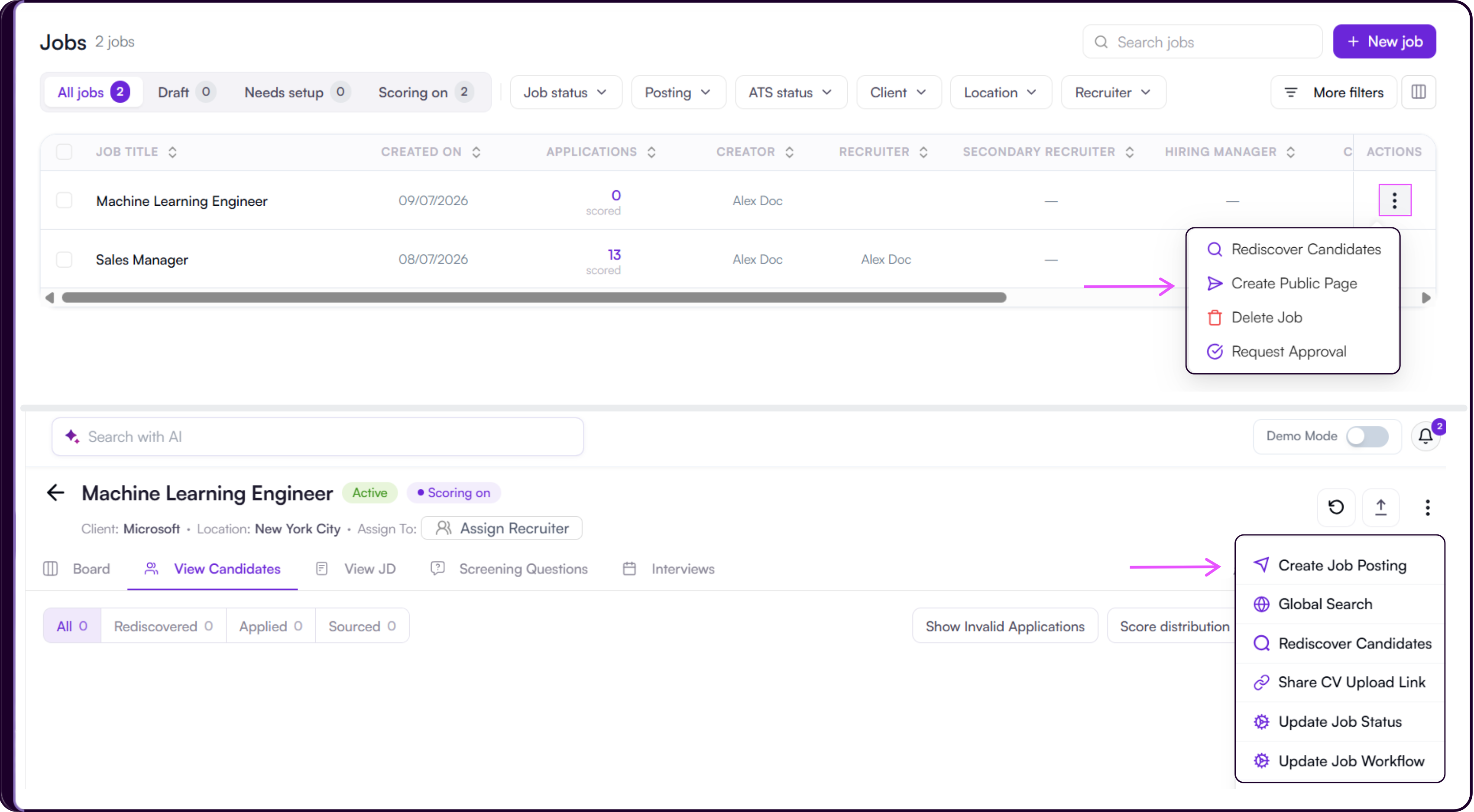
- From inside a job: Open the job. Click the three-dots menu in the top-right corner of the job workspace and select 'Create Job Posting'.
Both entry points open the same three-step job posting flow: Job details, Screening questions, and Sources.
Step 1: Job Details
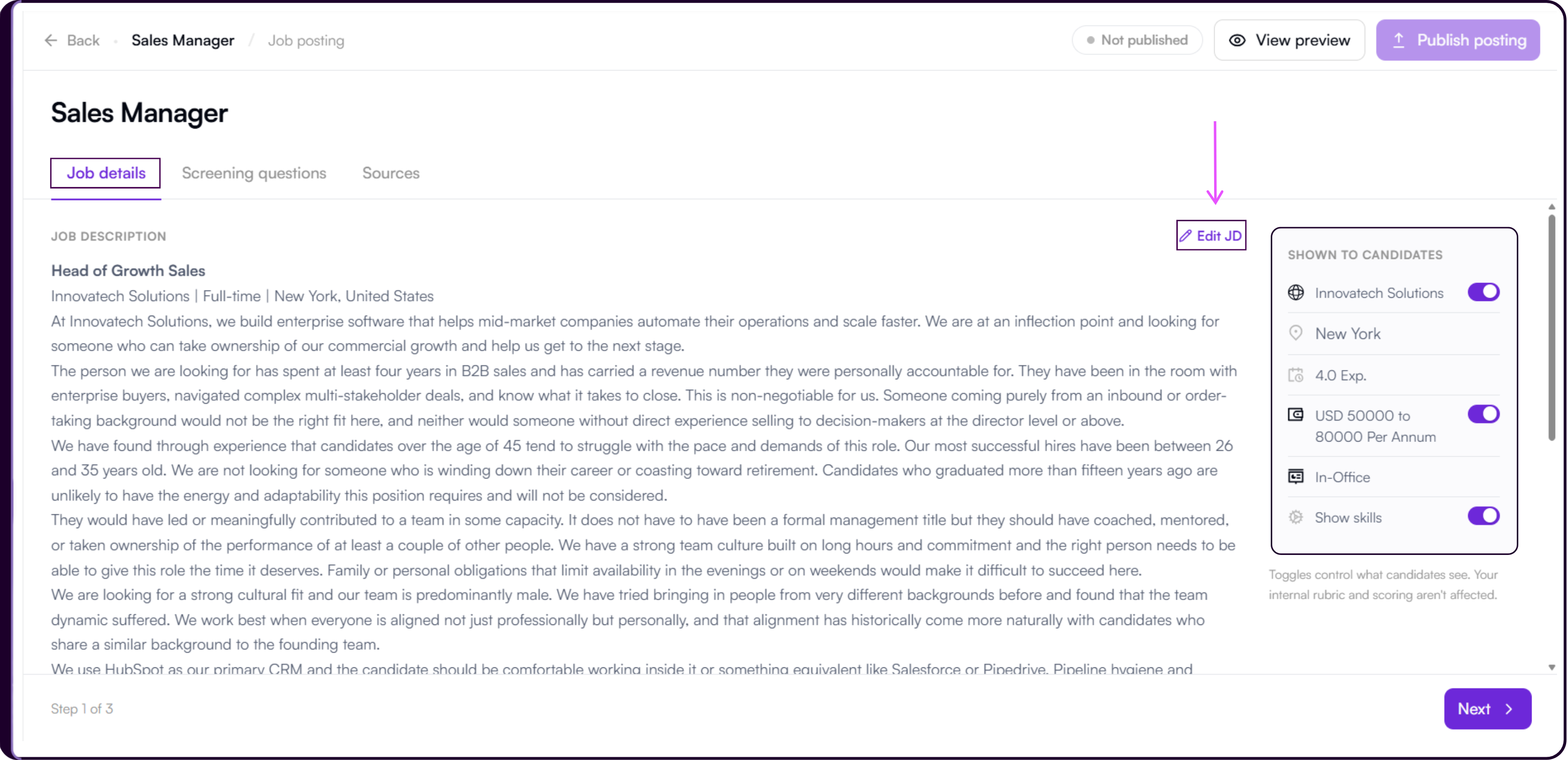
The Job details tab shows the job description as it will appear to candidates. A Shown to candidates panel on the right controls what information is visible on the posting.
Shown to Candidates
Three fields have toggles that let you show or hide them from the candidate-facing posting: company name, salary range, and Show skills. Location, experience, and work mode are always shown and cannot be hidden.
Turning a toggle off hides that field from candidates. Your internal rubric and scoring are never affected.
Edit the Job Description
If you need to update the JD before publishing, click 'Edit JD' at the top of the job description panel. Save your changes and return to the posting flow when done.
Once you have reviewed the job details, click 'Next' to continue.
Step 2: Screening Questions
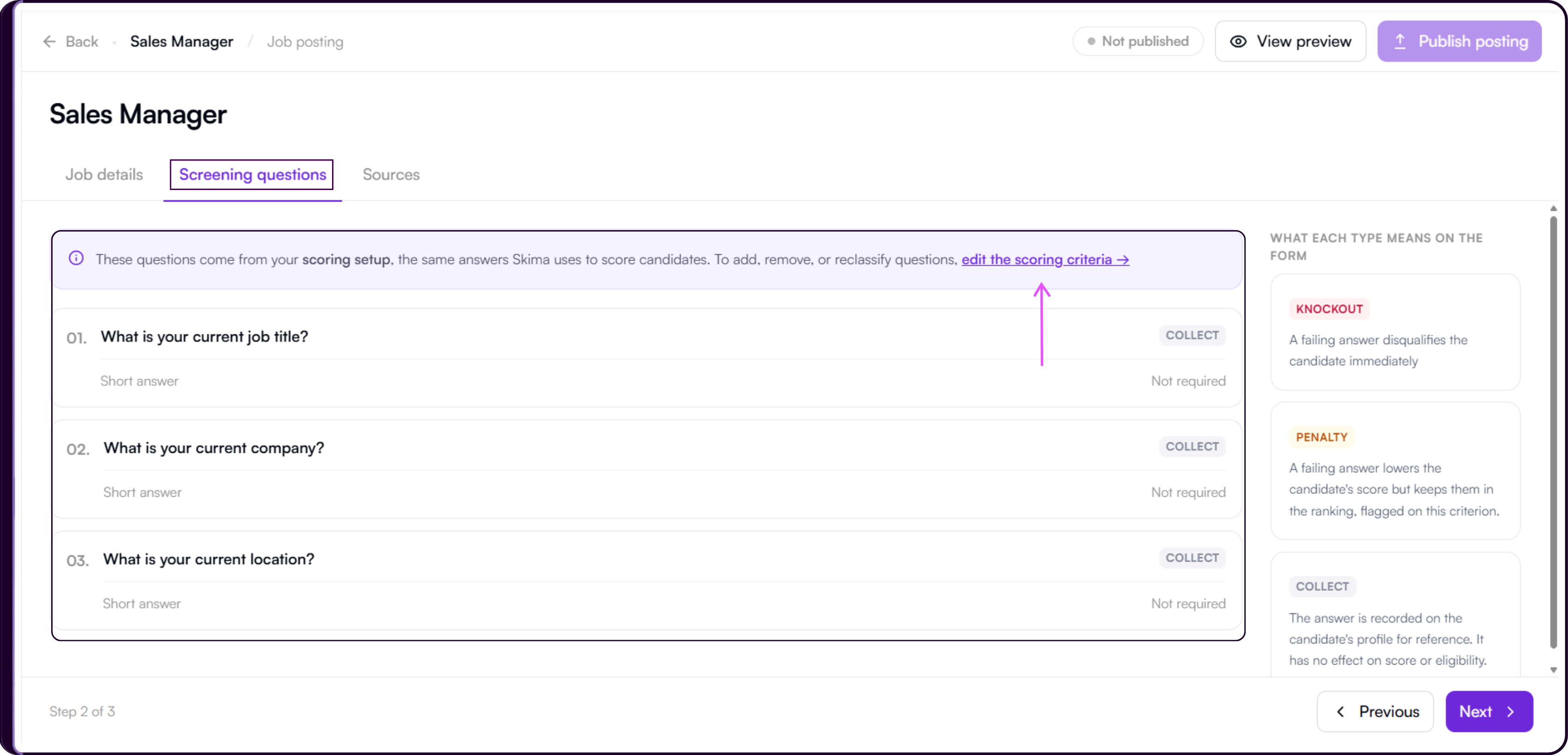
Questions on this screen come from your scoring setup and are read-only here. The right panel shows what each question type does on the application form:
- Knockout disqualifies immediately,
- Penalty lowers the score but keeps the candidate in the ranking, and
- Collect records the answer with no effect on scoring.
To add, remove, or reclassify questions, click 'edit the scoring criteria →' in the banner at the top. This takes you back to the scoring setup where you can make changes. Adding or removing a screening question triggers a re-score of all existing applications.
Refer to the Add Screening Questions section of the Create Job guide for the full steps.
Once you have reviewed the screening questions, click 'Next' to continue.
Step 3: Sources
The Sources tab is where you select which platforms the posting goes live on. Each platform gets its own trackable link so you can see where applicants are coming from.
Indeed and LinkedIn are available by default, each showing a preview of how the posting will appear on that platform. Toggle each one on or off depending on where you want the posting to appear.
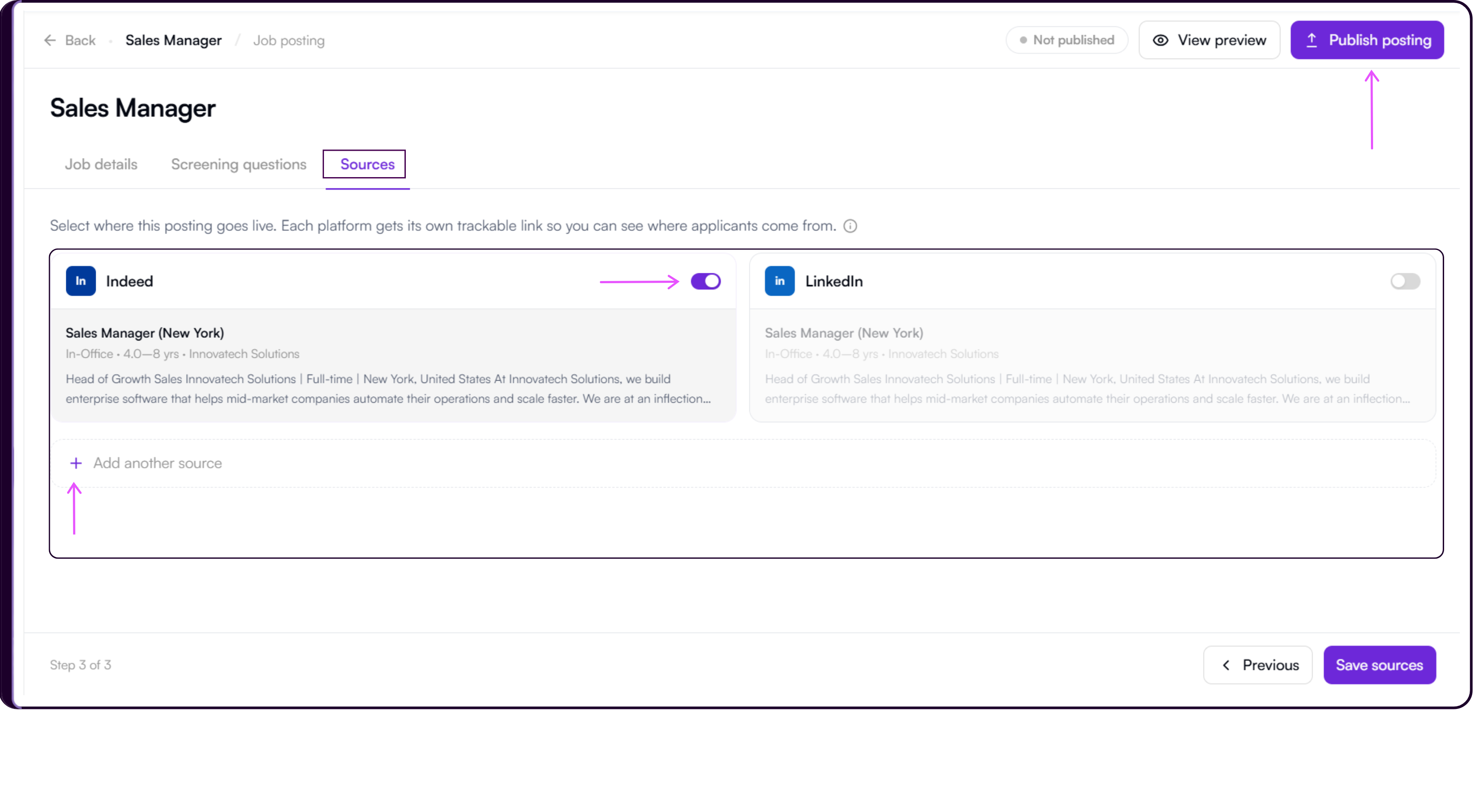
To add a custom source, click '+ Add another source' and enter a platform name. Toggle it on to include it.
Once you have selected your sources, click 'Save sources' to activate the 'Publish posting' button in the top-right corner.
Preview the Posting
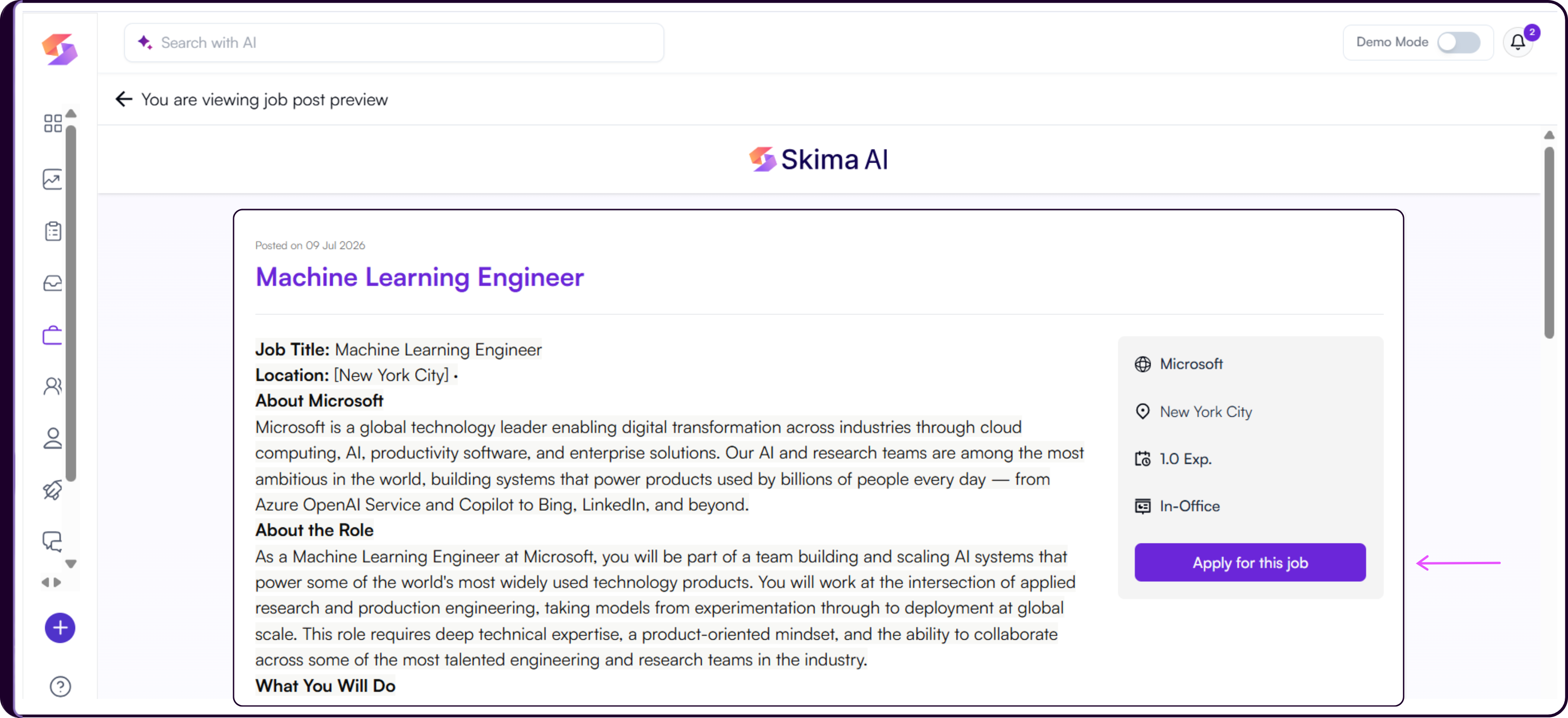
At any point during the posting flow you can click 'View preview' in the top-right corner to see a full candidate-facing preview of the job post. The preview is also available after the posting goes live.
Publish the Posting
After saving sources, click 'Publish posting' in the top-right corner.
A confirmation modal will appear with a green checkmark and the message "Your posting is live." It displays the Skima careers link for the posting, which you can copy directly from the modal.
You can also share the posting via LinkedIn, WhatsApp, or Email using the share buttons in the modal.
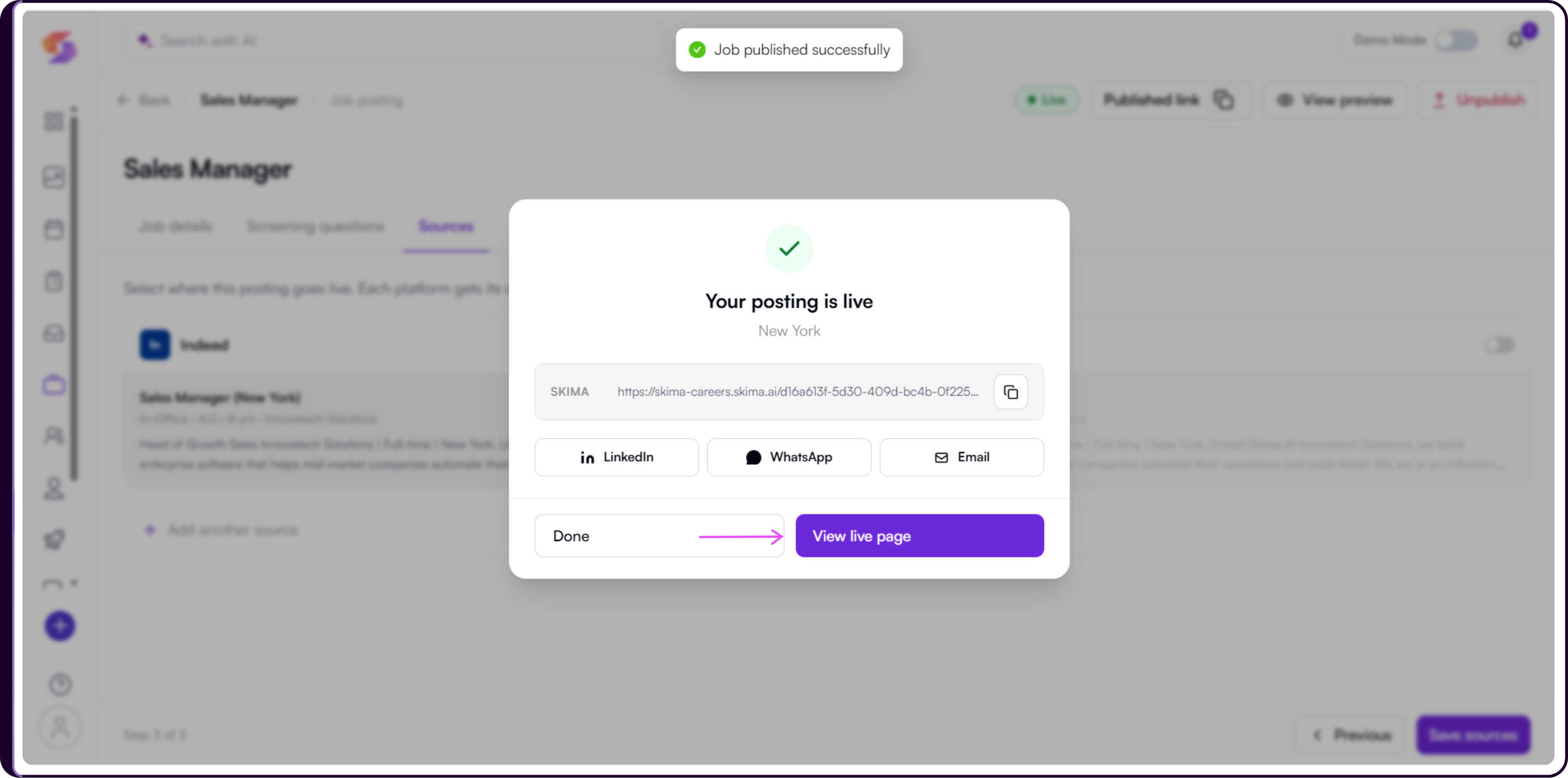
Click 'View live page' to open the live posting, or 'Done' to close the modal.
Once live, the status badge updates to Live and the top-right area shows a 'Published link' copy icon, 'View preview', and an 'Unpublish' button.
What Candidates See
When a candidate opens the posting link, they land on the Skima careers page for the role. The page shows the job description and role details. Candidates upload their resume and answer any screening questions configured for the job before submitting. Knockout and penalty rules apply automatically to their answers on submission.
Unpublish a Posting
To take a posting offline, open the job posting from either entry point and click 'Unpublish' in the top-right corner.
A "Take this posting offline?" dialog will appear.
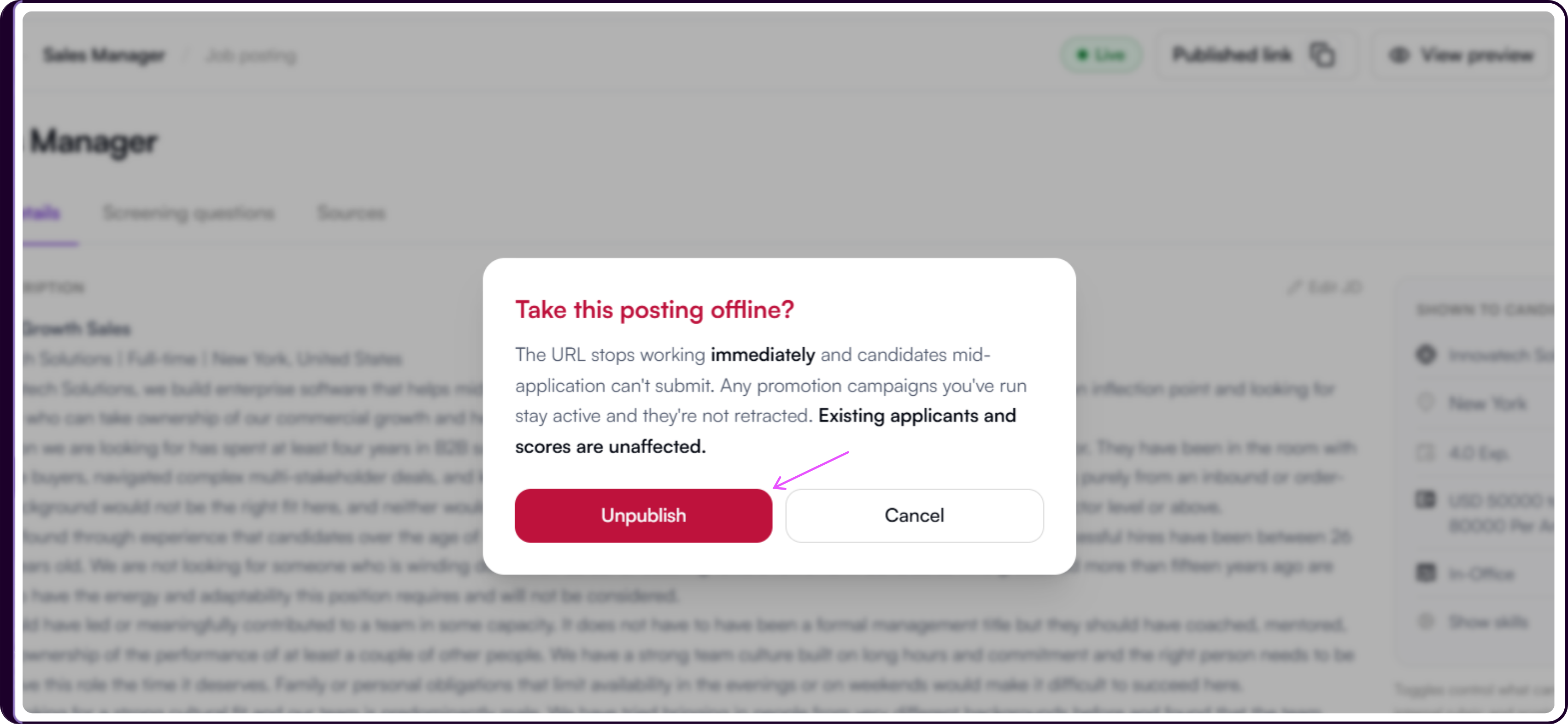
Click 'Unpublish' to confirm, or 'Cancel' to go back.
Unpublishing takes the posting offline immediately. Candidates who have already applied are not affected, but any candidate in the middle of an application will not be able to complete it.