

Lever Integration
Skima AI helps recruitment teams automate workflows, prioritize candidates using AI scoring, and streamline hiring operations. With the Lever integration, you can sync candidates, jobs, applications, and notes from Lever into Skima AI, automate repetitive tasks, and manage pipelines from one place.
Setting Up the Integration
This section guides you through connecting your Lever account with Skima AI. Once connected, Skima AI will begin syncing your Lever candidates, jobs, and applications so you can use AI-driven insights and workflow automation within Skima AI.
Log in to your Skima AI dashboard.
Navigate to 'Integrations' from the left sidebar.
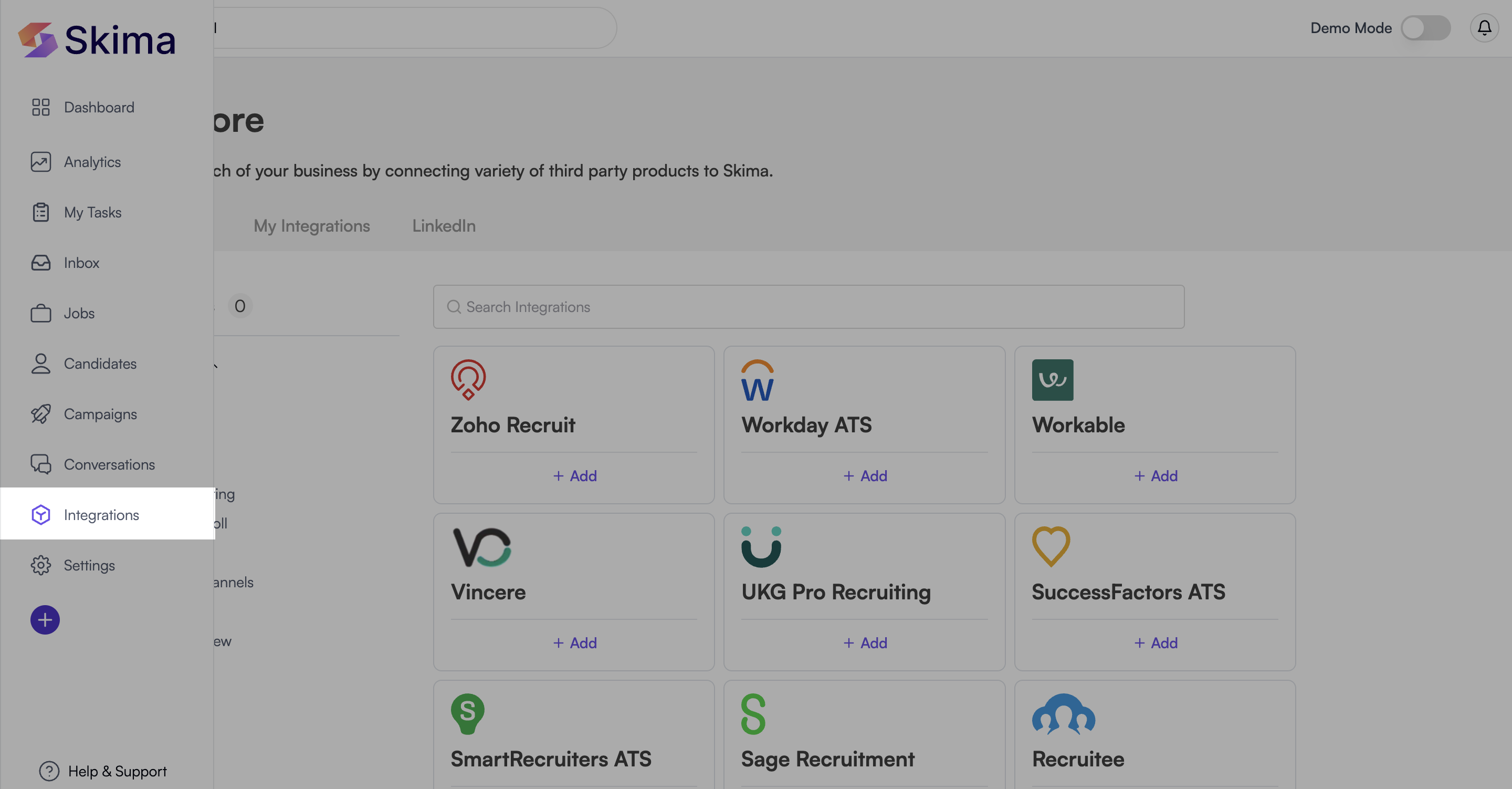
Search for 'Lever' or scroll through the ATS integrations list.
Click 'Add' to begin the setup process.
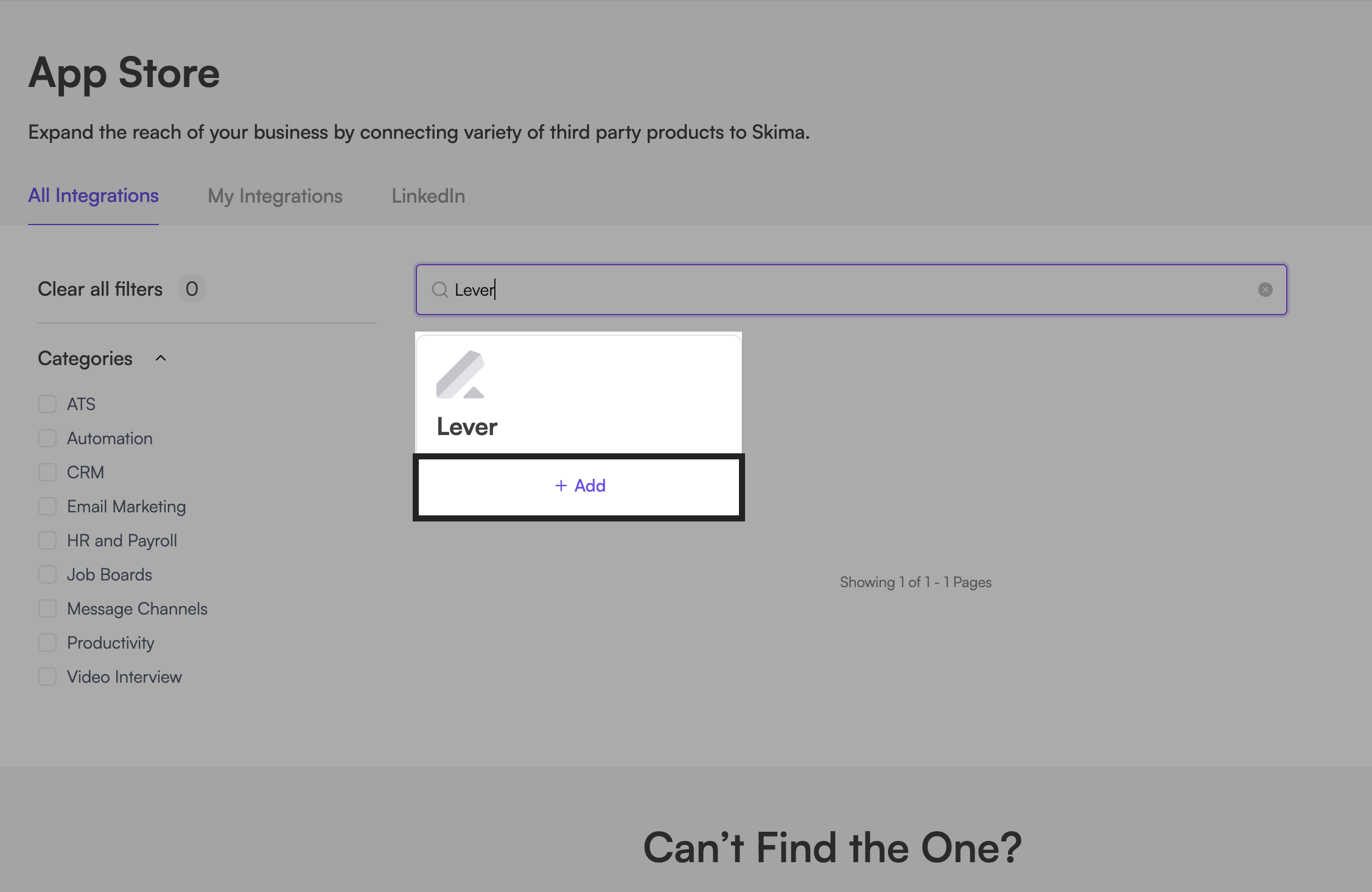
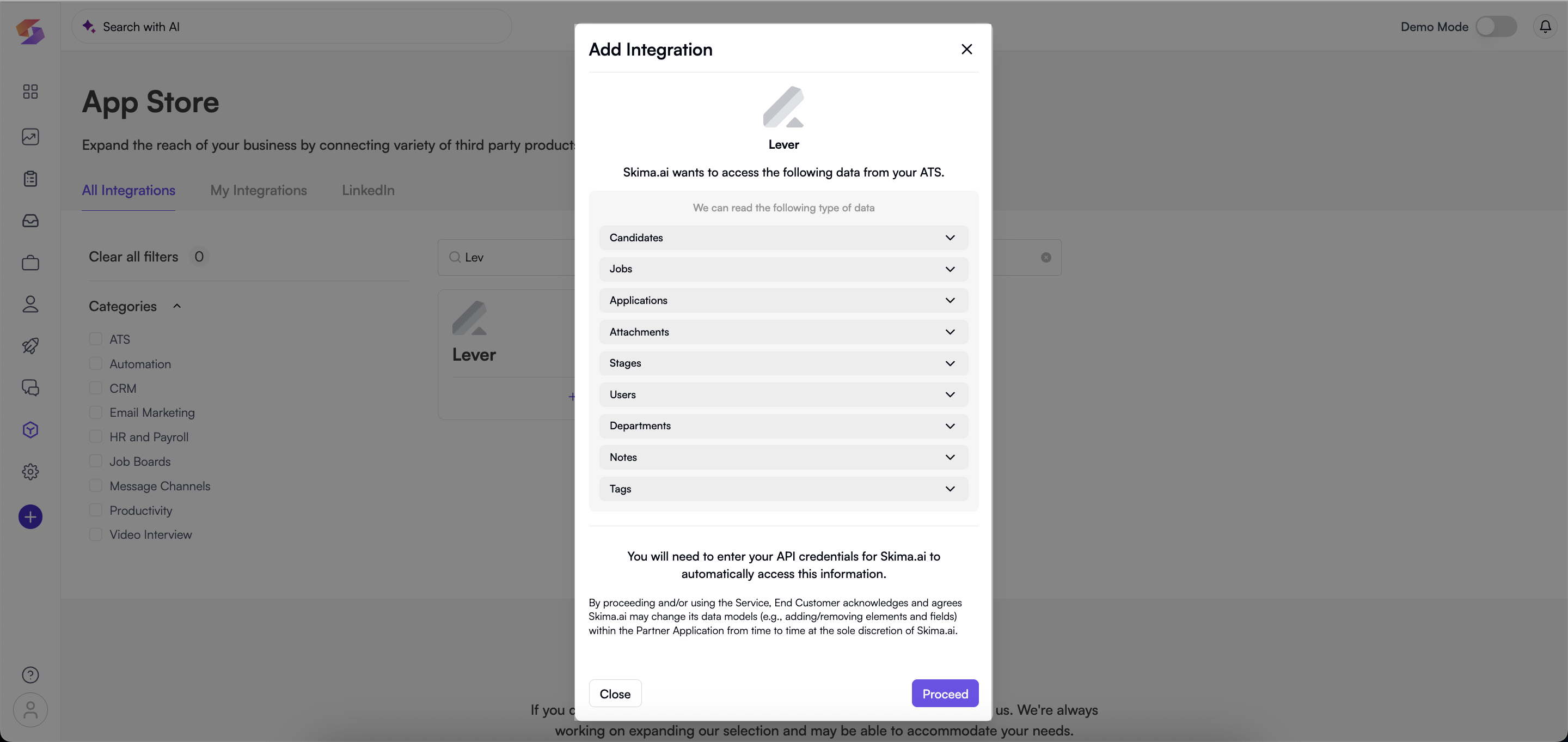
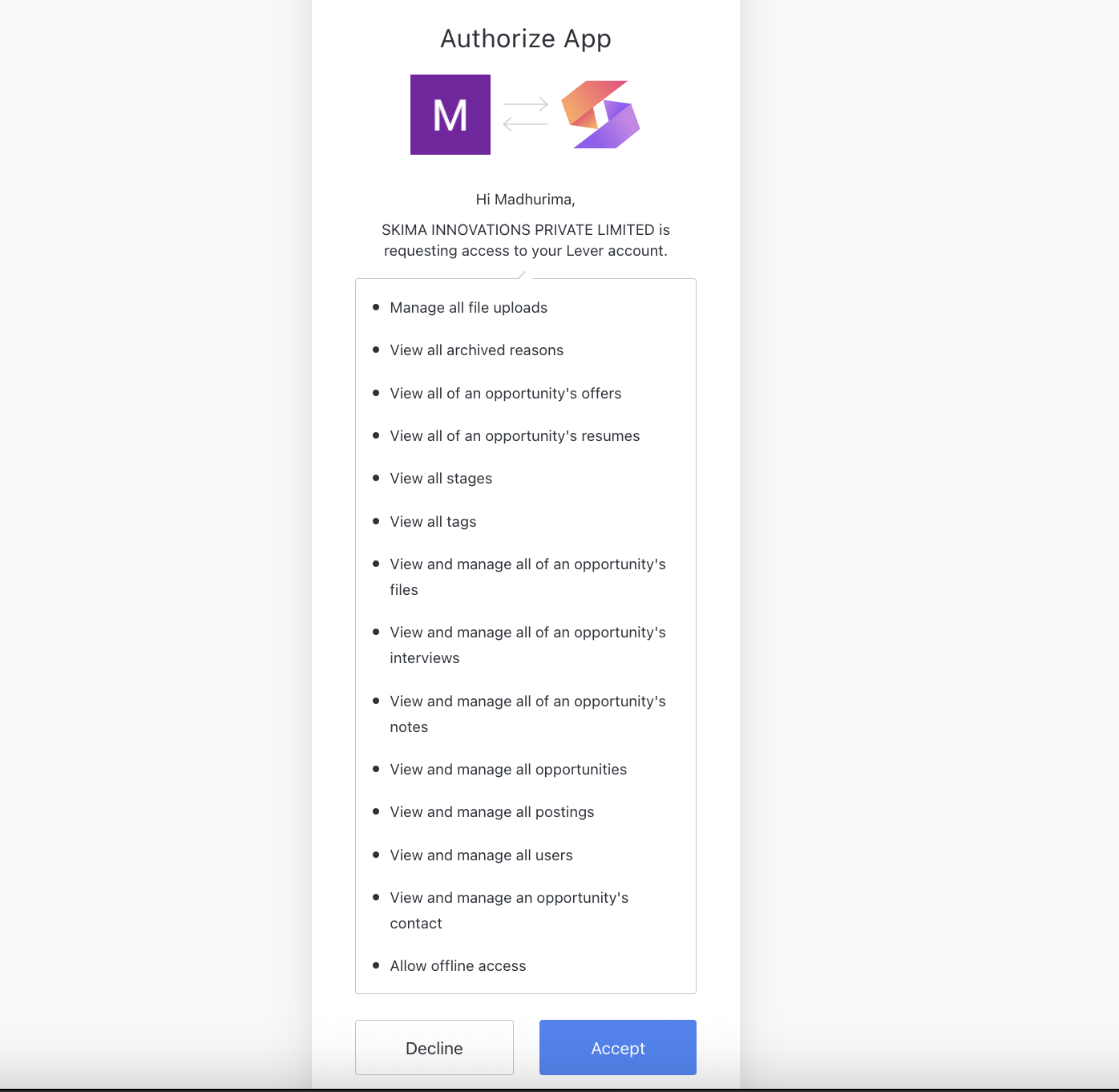
Review the permissions Skima AI requires. These include Candidates, Jobs, Applications, Attachments, Stages, Users, Departments, Notes, and Tags.
Click 'Proceed' to continue.
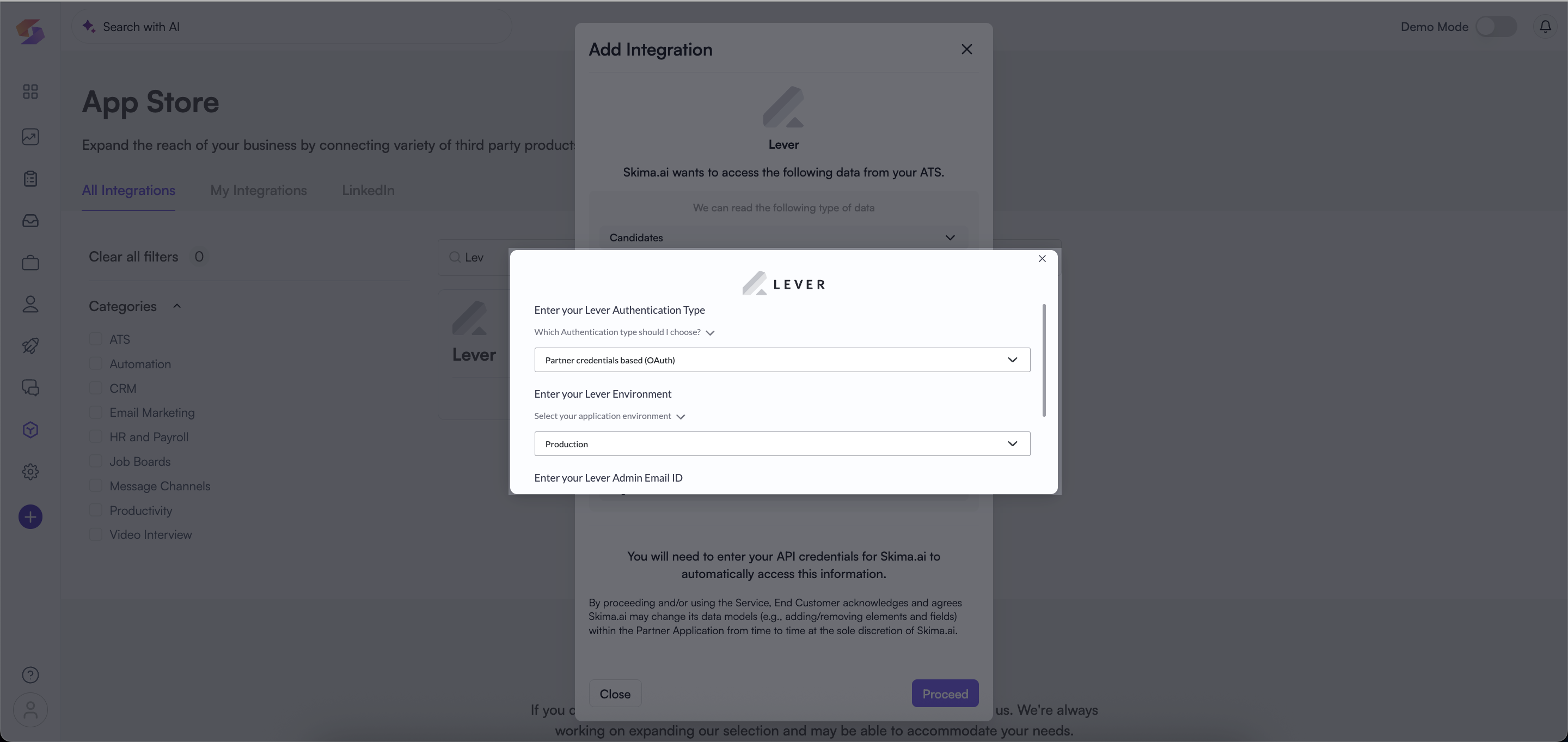
- Enter your Lever credentials: Lever Admin Email ID, Lever Authentication Type (e.g. Partner credentials based OAuth), and Lever Environment (e.g. Production).
- Once credentials are submitted, you will be redirected to Lever's authorization screen. Click 'Accept' to approve Skima AI's access.
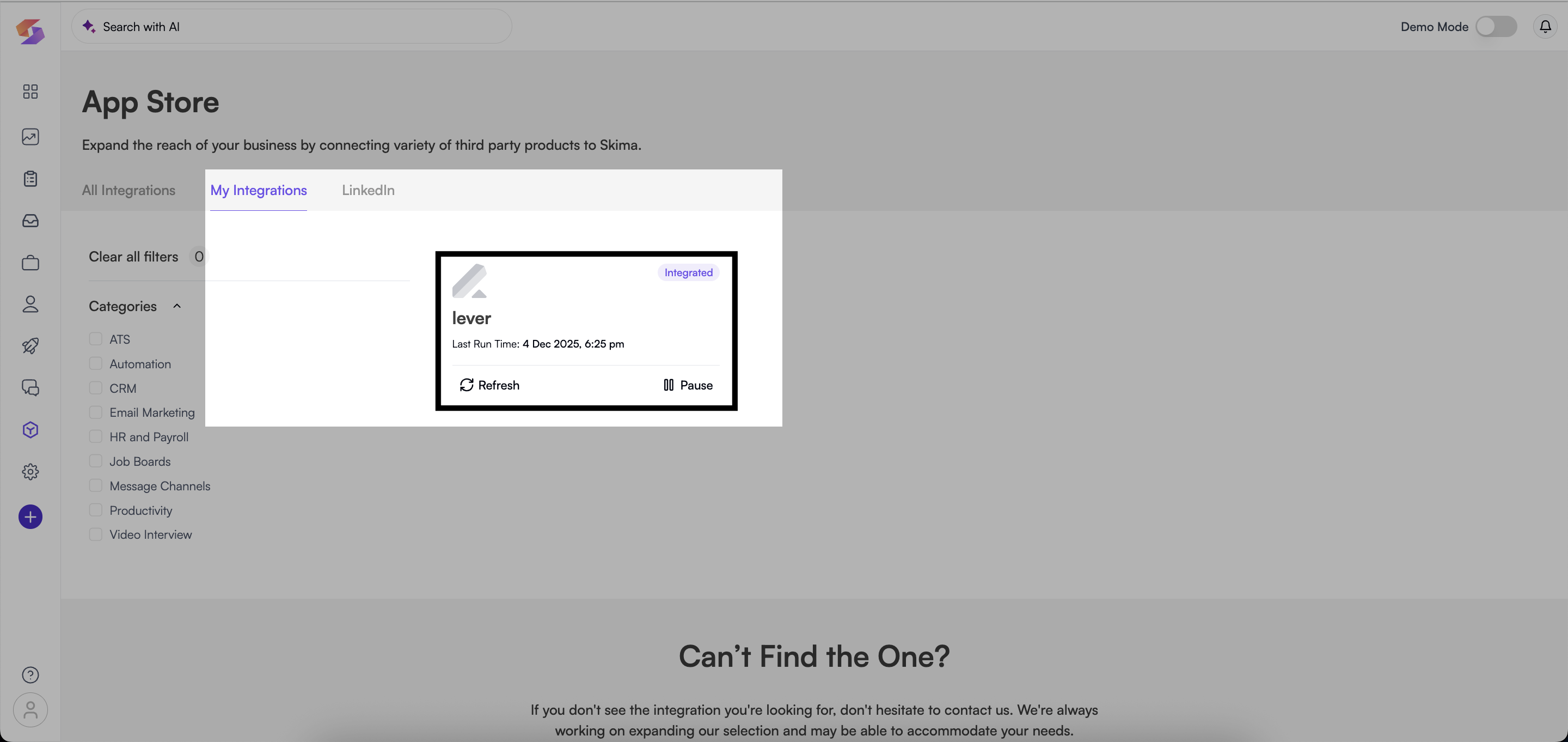
- After successful authorization, Lever will appear under the 'My Integrations' tab in Skima AI, confirming the integration is active and syncing.
Using the Integration
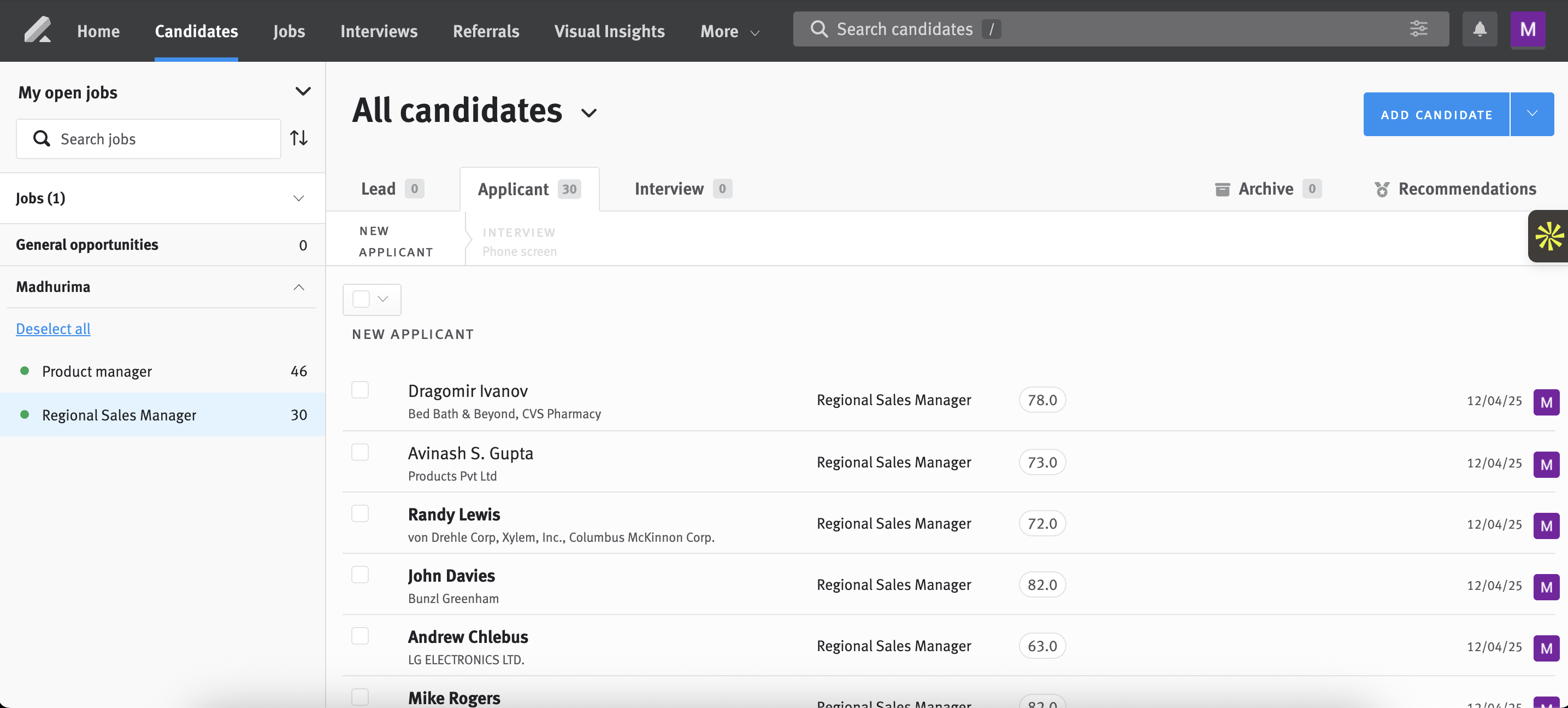
Once your Lever account is connected, Skima AI begins ingesting candidates, jobs, applications, and notes. This enables Skima AI to evaluate candidate and job fit, enrich profiles, and support workflow automation.
Opportunity Stage Sync
Skima AI retrieves updated opportunity stages during scheduled sync cycles. This keeps your pipeline, candidate details, and opportunity updates aligned with Lever without requiring manual refresh.
During each sync, Skima AI updates opportunity stages pulled from Lever, refreshes candidate and job data, syncs notes, attachments, and applications, and updates AI scores based on newly synced information.
Candidates and Applications
Candidate and application data is used for AI scoring, pipeline insights, and assessments. Skima AI can also push updates back to Lever, such as tags or notes added during the AI matching process.
Jobs
Lever jobs and job postings are imported into Skima AI to support candidate and job matching and reporting. Updated job data is also pushed back to Lever to keep both systems aligned.
Notes
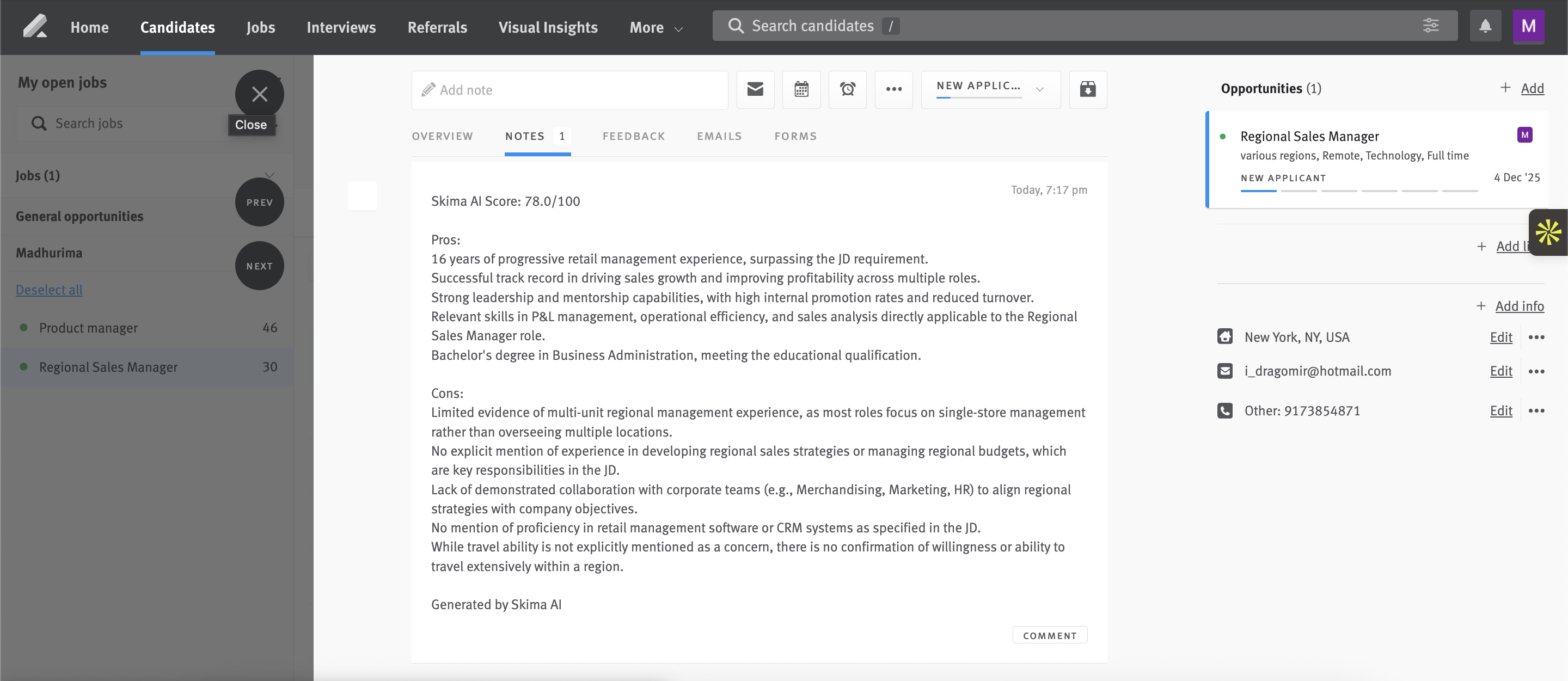
Skima AI sends notes with AI matching analysis back into Lever so that actions taken within Skima AI are reflected in Lever's activity timeline.
Disabling the Integration
If you need to stop syncing Lever data or remove the integration entirely, you can disable the connection from either Skima AI or Lever.
In Skima AI
- Navigate to 'Integrations' from the left sidebar.
- Find Lever under 'My Integrations'.
- Click 'Disconnect' to disable the integration.
In Lever
- Navigate to 'Settings' then 'Integrations and API' then 'Authorized Apps'.
- Locate the Skima AI app.
- Click 'Revoke Access' to fully remove authorization.
After Disconnecting
Previously synced Lever data remains available in Skima AI. New data will no longer sync, and Skima AI will stop sending updates back to Lever.