

Career Page Setup
Setting up your Skima AI Career Page allows organizations to publish jobs using their own branding, company information, and domain configuration. A branded career page creates a more professional candidate experience while helping recruiters centralize all incoming applications directly inside Skima AI.
Navigate to Career Page Settings
Navigate to 'Settings' from the left sidebar.
Open 'Career Page Settings'.
This section allows you to configure your public career page branding, company details, domain setup, and visual appearance.
1. Configure Basic Information
The Basic Information section controls the organization details displayed on your public career page and published jobs.
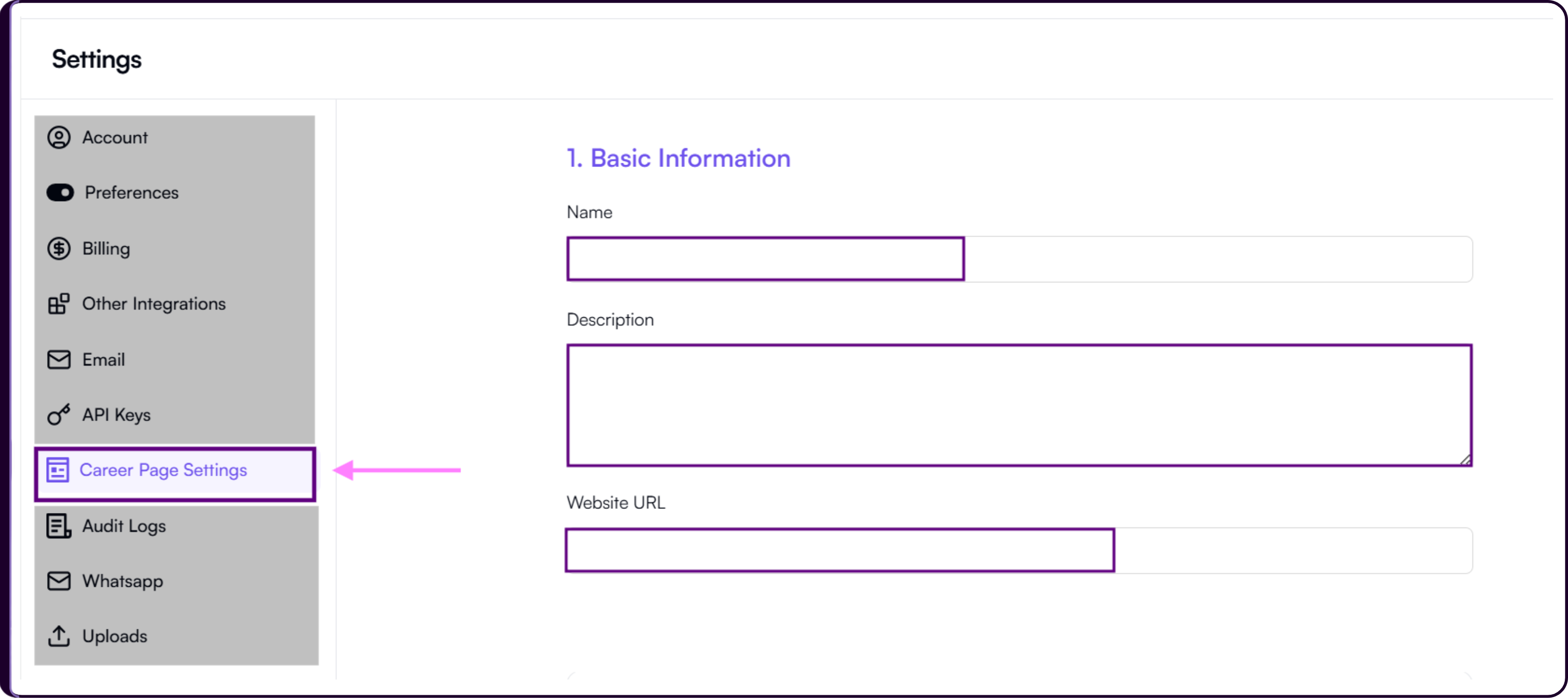
Name
The organization name entered here becomes visible across your career page and public job postings.
Description
Add a short overview about your company, hiring culture, or mission to help candidates better understand your organization before applying.
Website URL
Enter your official company website URL so candidates can directly navigate to your main website from the career page.
2. Configure Your Career Page Domain
Skima AI allows organizations to either use a hosted Skima AI subdomain or configure their own branded custom domain.
Use a Skima AI Subdomain
This is the fastest and recommended setup option.
Under 'Use a Skima AI Subdomain', choose your preferred subdomain prefix.
Example:
yourcompany.skima.ai
Once saved, your career page becomes instantly accessible using the generated Skima AI URL.
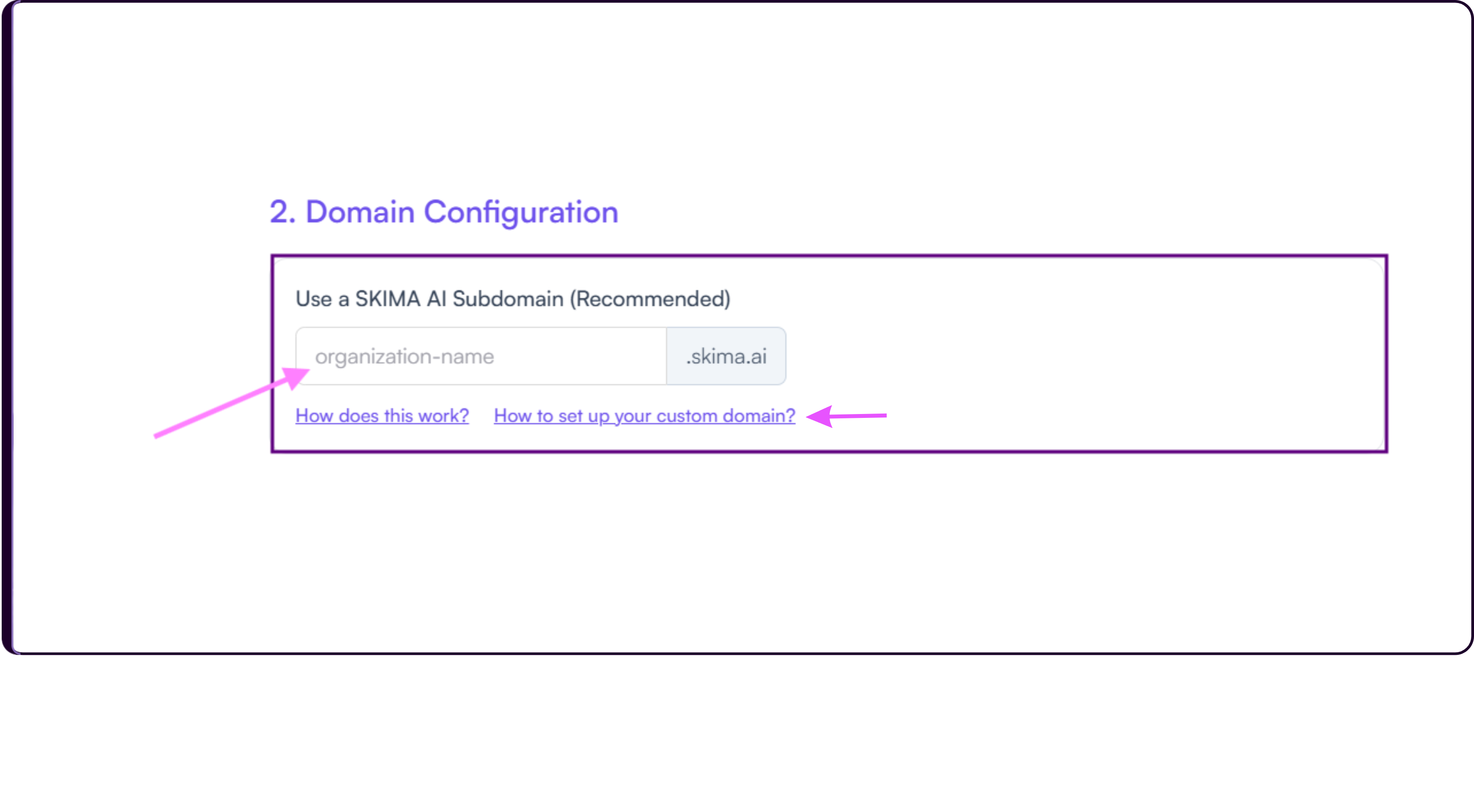
Skima AI automatically manages hosting, SSL certificates, and DNS handling for Skima AI subdomains. No technical setup is required. Click on "how does this work?" & "how to set up your custom domain?" guide links to know more in detail.
Configure a Custom Domain
Organizations can also connect their own branded domain such as:
careers.yourcompany.com
To configure a custom domain:
Login to your domain provider such as GoDaddy, Namecheap, or Cloudflare.
Open your DNS Management settings.
Create a new 'CNAME' record pointing your chosen careers subdomain to:
techtable.skima.ai
Save the DNS changes.
Return to Skima AI and enter the complete custom domain inside the Custom Domain section.
DNS propagation may take several hours depending on your provider configuration.
Advanced Setup - Subdirectory Configuration
Organizations wanting URLs such as:
yourcompany.com/careers
will require reverse proxy configuration on their existing website infrastructure.
3. Branding & Appearance
The Branding & Appearance section controls the visual identity of your public career page.
Primary Color
Choose the primary brand color used across buttons, highlights, and interactive elements on the career page.
Organization FavIcon
The favicon appears in browser tabs when candidates open your career page.
Supported formats include PNG, JPG, JPEG, SVG, and ICO with a maximum file size of 100KB.
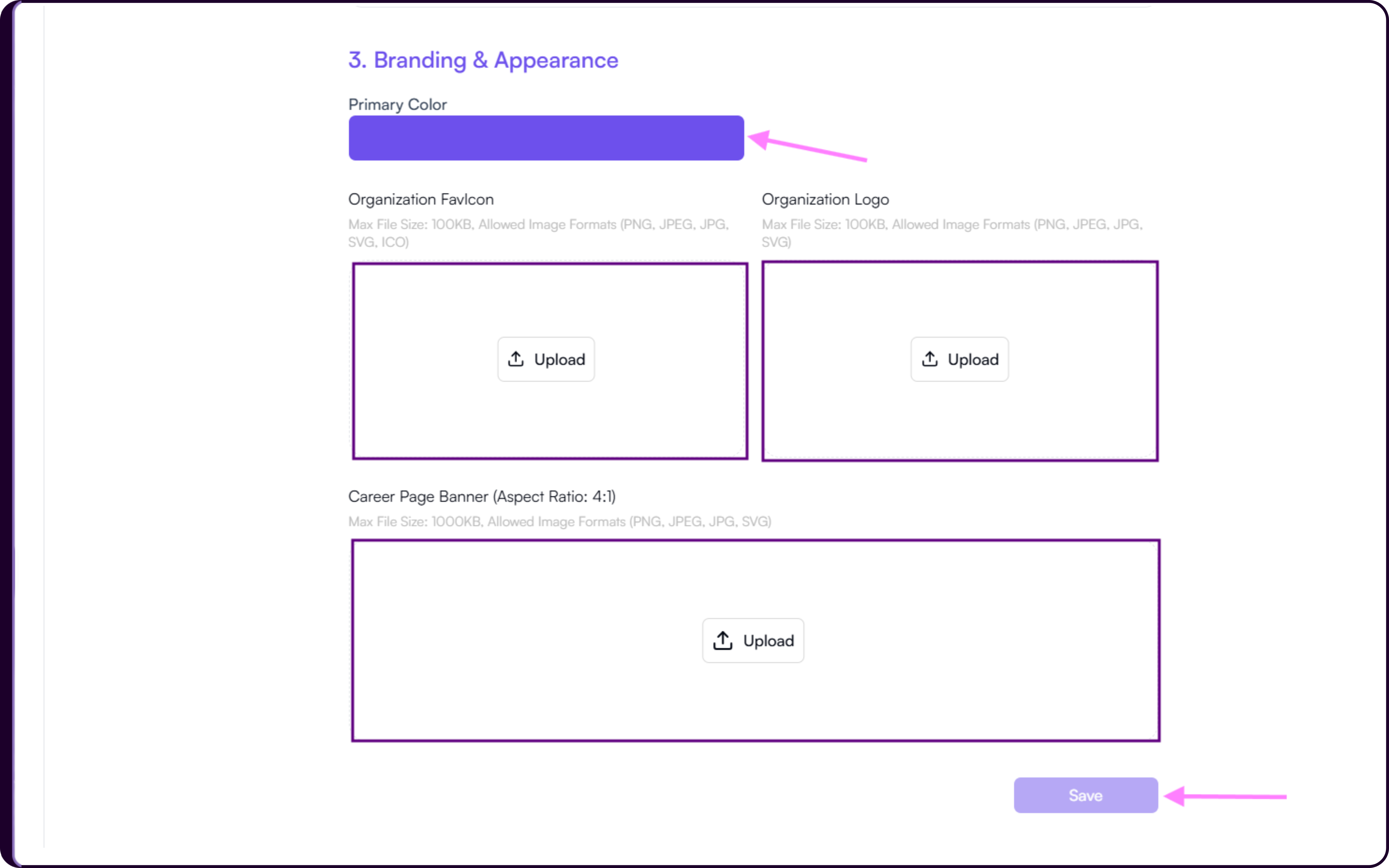
Organization Logo
Upload your company logo to display branding consistently across career pages and published job postings.
Supported formats include PNG, JPG, JPEG, and SVG with a maximum file size of 100KB.
Career Page Banner
The banner image appears at the top of the public career page and helps create a stronger branded candidate experience.
Recommended aspect ratio:
4:1
Supported formats include PNG, JPG, JPEG, and SVG with a maximum file size of 1000KB.
Save Changes
Once the configuration is completed:
Click on 'Save'.
Skima AI will apply the updated branding, domain, and appearance changes to your public career page.