

Firefox Extension
With the Skima AI Firefox Extension, you can screen, score, and manage candidates directly inside your ATS while accessing AI insights without switching between multiple platforms. This helps recruiters review applications faster, streamline hiring workflows, and manage candidates from a single interface.
Install Firefox Extension
- Search for "Skima AI Firefox add on" in the Firefox Add-ons store or open this link: Download Firefox Extension here
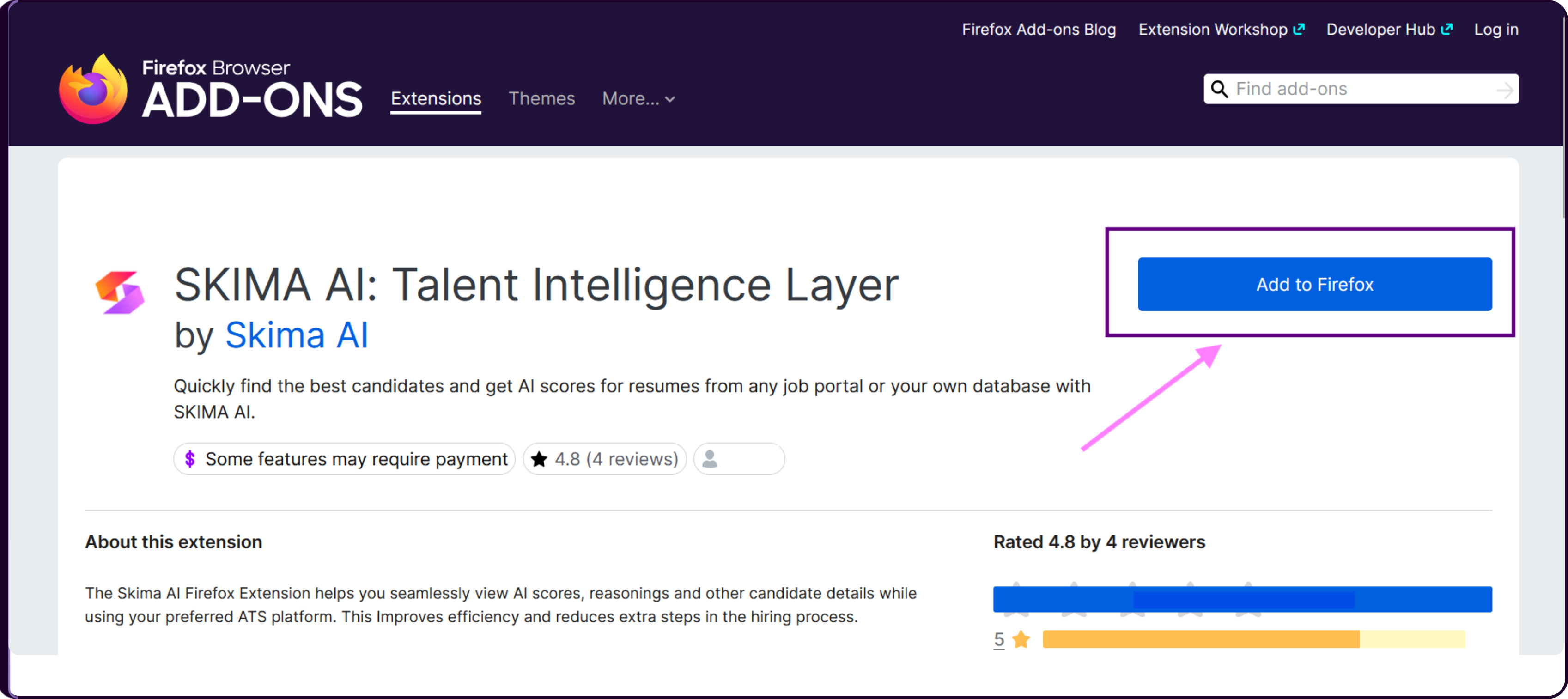
- Click on 'Add to Firefox' to install the extension. A permissions pop-up will appear. Review the permissions and click on 'Add'.
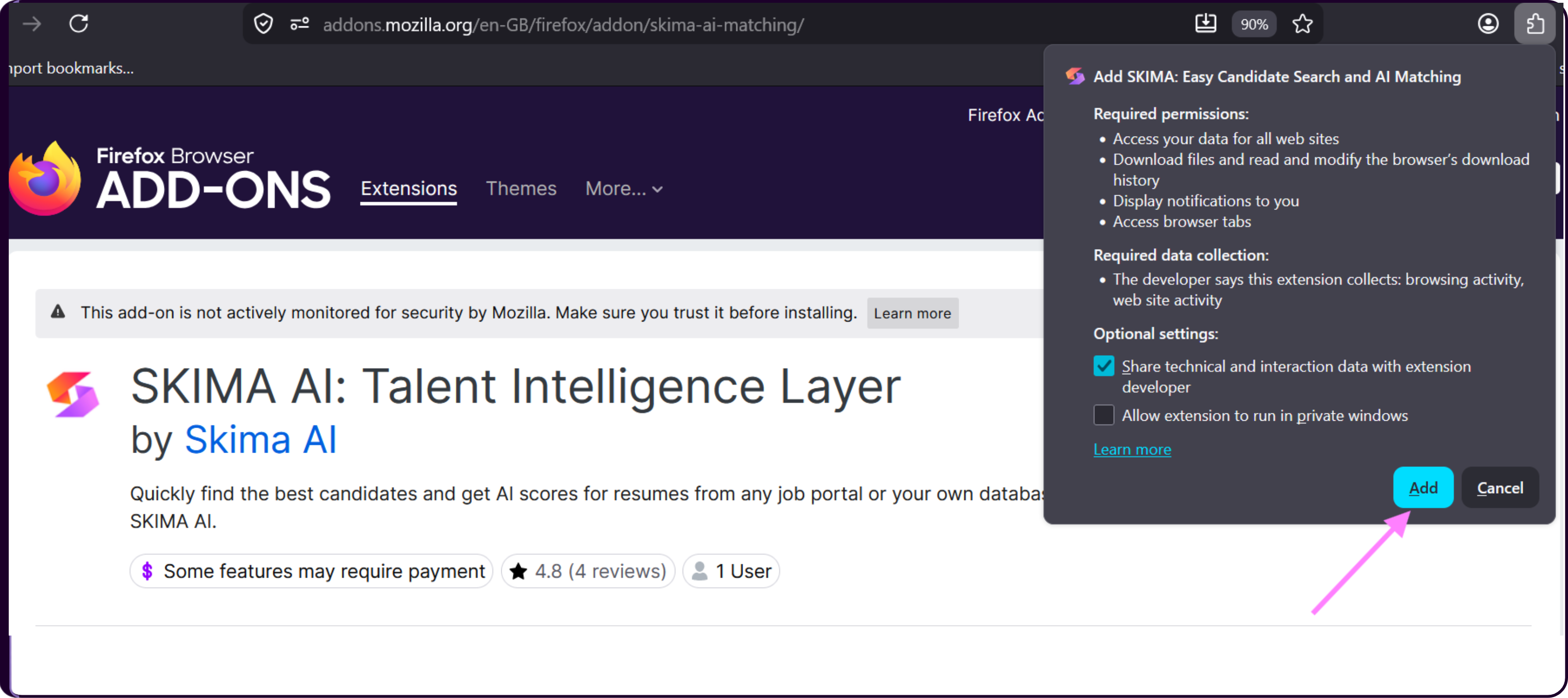
- Once installed, the extension will be added to your Firefox browser. Pin the extension to your browser toolbar for faster accessibility and a smoother hiring workflow.
Connect the Extension with Skima AI
Click on the 'Skima AI Extension' icon from the Firefox toolbar.
You will be redirected to the Skima AI platform.
Log in using your Skima AI account credentials.
Once logged in, your Firefox extension will automatically sync with your Skima AI workspace.
Using the Extension Inside Your ATS
Once the extension is installed and set up, go to your ATS that is integrated with Skima AI. All your jobs and applications are automatically fetched from your ATS once the integration is completed.
After logging in to your ATS and opening the job postings list, the Skima AI Firefox Extension panel will appear based on the preferences configured inside the extension.
You will be able to view all job postings synced from your ATS with Skima AI along with important hiring insights such as the total number of parsed valid applications received for each job, the number of candidates shortlisted for each role, and candidate profiles with AI scores, Pros, and Cons.
This information is displayed directly inside your ATS, allowing recruiters to review candidates without switching between multiple platforms.
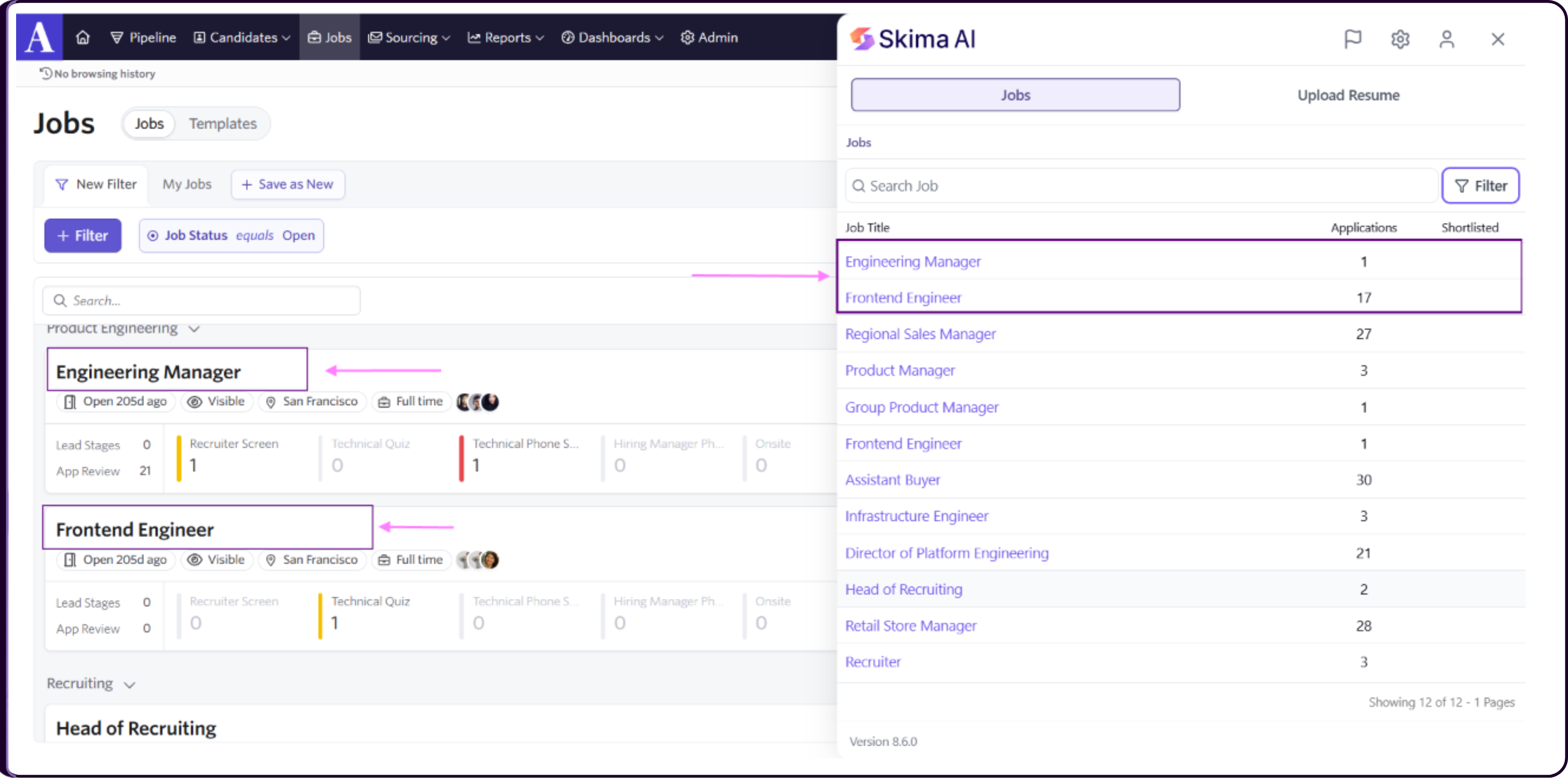
Click on any job title to open the list of applications associated with that role.
Inside the applications view, you can review all candidates along with key insights directly within your ATS interface, including their AI score, parsed candidate information, and current application status from your ATS such as In Review, Interview, or Shortlisted.
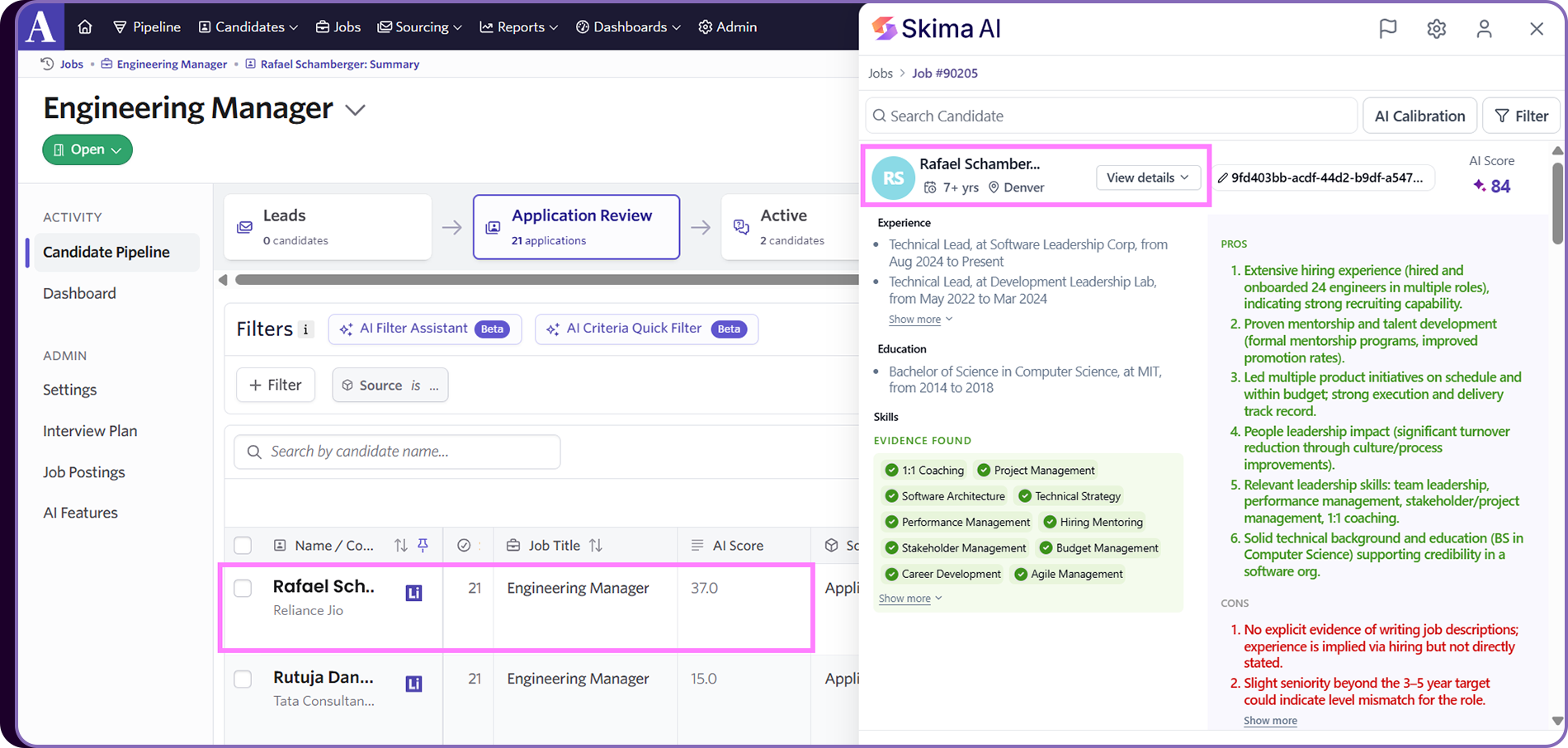
Click on any candidate to view detailed screening insights including their AI matching score, Candidate Pros and Cons based on the job description, current application status, experience, education, and skills, as well as evidence found and missing skills based on job requirements and AI Calibration notes.
You can also filter candidates using Application Status filters and Screening Question filters directly inside the extension to streamline high-volume screening workflows.
Refer to:
Sidebar Shortcut (Quick Access Setup)
You can configure a keyboard shortcut to instantly open the Skima AI Firefox Extension sidebar without manually clicking on the extension icon. This helps recruiters review and manage candidates faster during high-volume hiring.
Set Your Shortcut
- Click on the Skima AI Firefox Extension icon.
- Open Settings → Preferences.
- Navigate to Sidebar Shortcut and click on 'Change'.
Configure in Firefox
- You will be redirected to the Firefox extension shortcuts page.
- Find Skima AI Firefox Extension in the list.
- Click on the edit option beside the command.
- Enter your preferred shortcut.
Example: Alt + Shift + S- Save the changes.