

Chrome Extension
With the Skima AI Chrome Extension, you can screen, score, and manage candidates directly inside your ATS while also downloading and uploading resumes automatically to Skima. This helps you review applications, access AI insights, and manage candidates faster without switching between multiple platforms.
Install Chrome Extension
Install the Skima AI Chrome Extension from the Chrome Web Store.
Click on 'Add to Chrome' to install the extension. A permissions pop-up will appear. Review the permissions and click on 'Add Extension'.
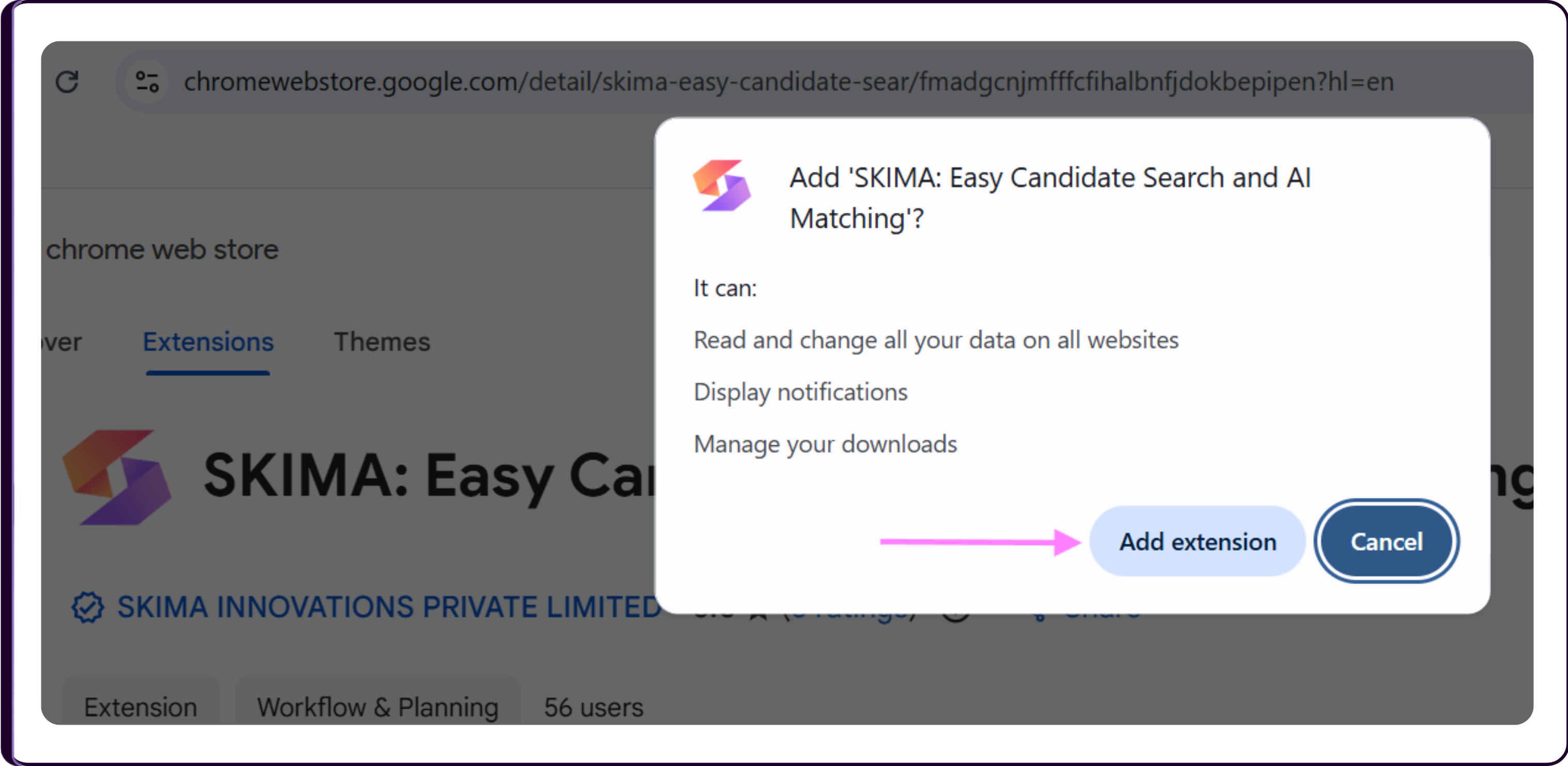
- Once installed, the extension will be added to your Chrome browser. Pin the extension to your browser toolbar for faster accessibility and a smoother hiring workflow.
The extension needs access to files and URLs to help you upload resumes directly from your browser.
Click on the Skima AI Extension icon in Chrome, you will be redirected to the Skima AI app.
Log in to your user account. Your chrome extension will be synced to your Skima AI account.
Again, Click on the Skima AI Extension icon. You will view all your jobs created in Skima AI.
Switch to the 'Upload Resume' tab and as shown below, you will be prompted to provide access to files and URLs.
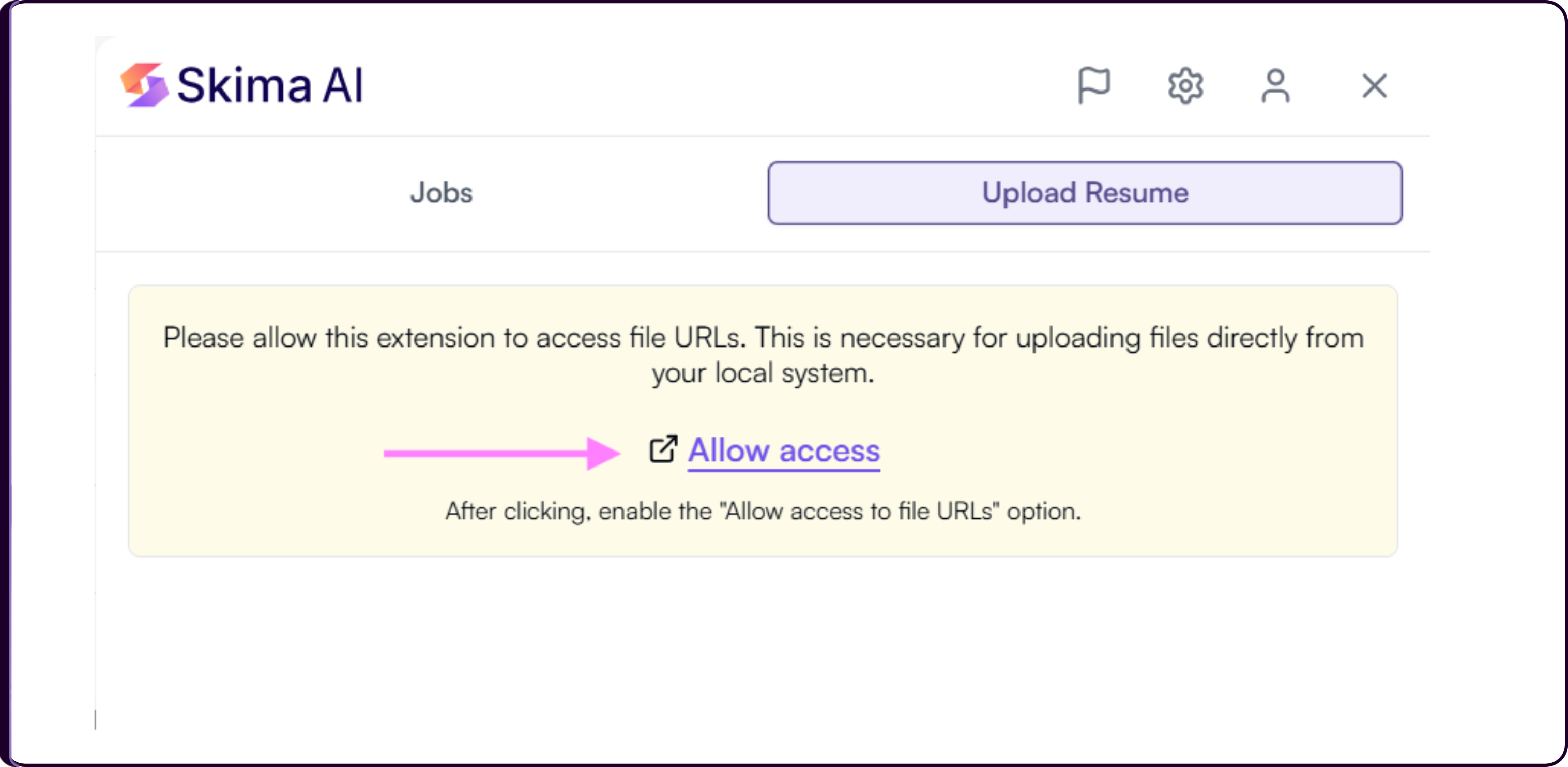
Click on 'Allow Access' to proceed which will take you to Chrome Extension Settings.
Scroll down to Skima AI Extension and enable 'Allow access to file URLs'.
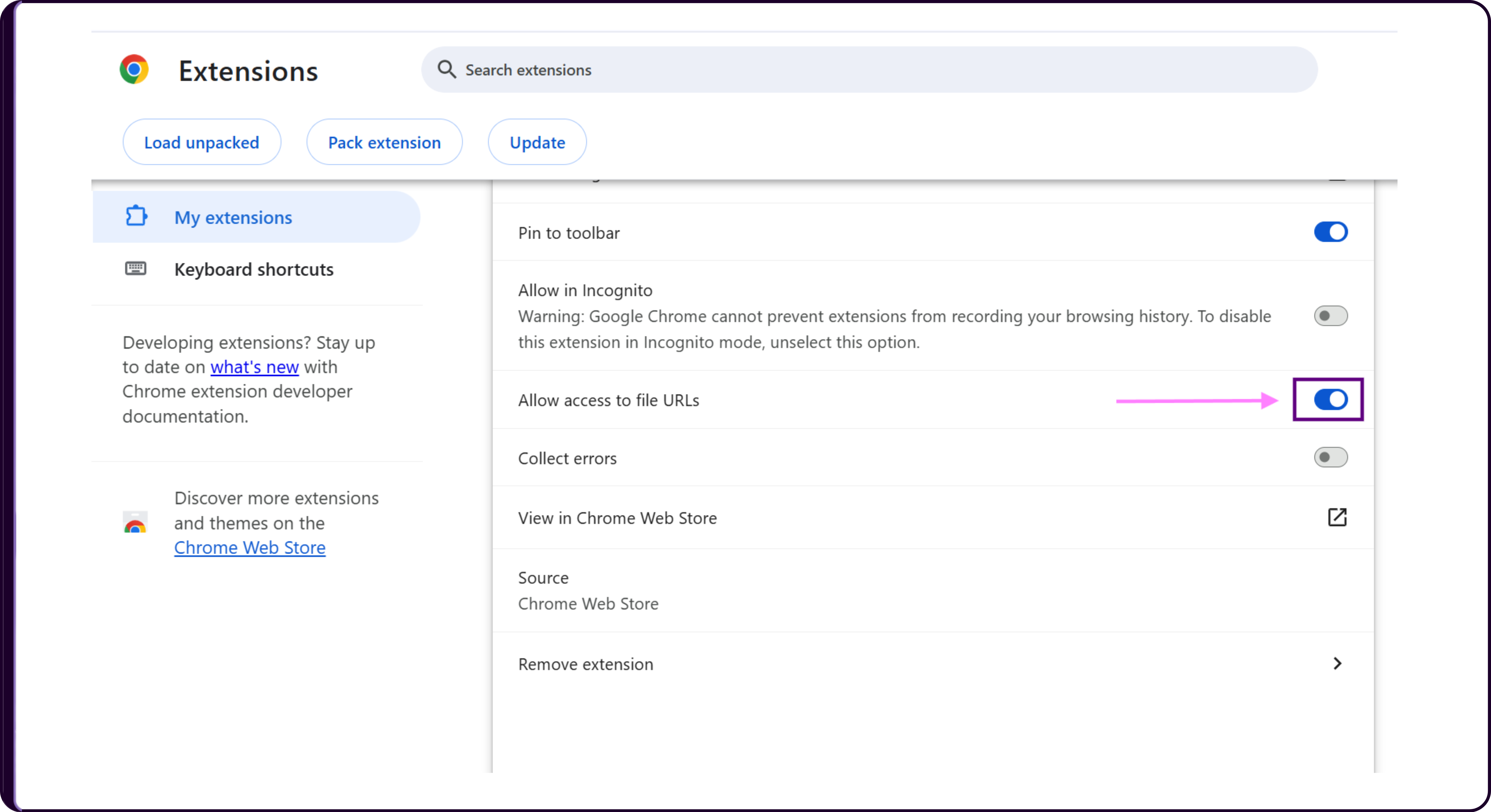
This setting allows Skima AI to automatically detect resumes downloaded from job boards, LinkedIn, or emails.
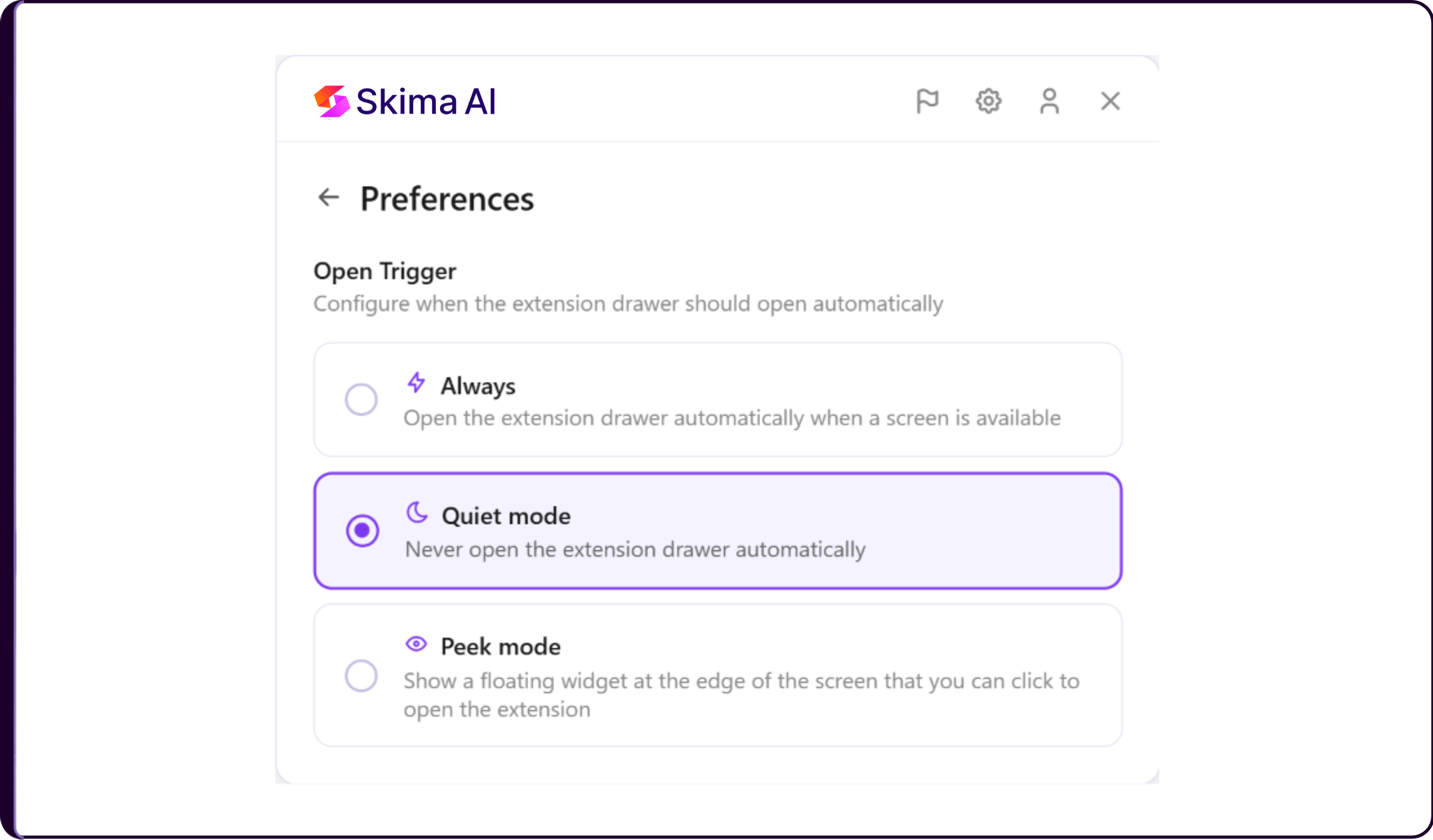
Additional: Go to 'settings' → View Preferences. Select your Skima AI extension's behaviour under Open Trigger, which configures when the extension drawer should open automatically.
- Always opens the extension drawer automatically whenever a screen is available.
- Quiet mode never opens the extension drawer automatically. You open it manually when needed.
- Peek mode shows a floating widget at the edge of the screen that you can click to open the extension.
Using the Extension Inside Your ATS
Once the extension is installed and set up, go to your ATS that is integrated with Skima AI. All your jobs and applications are automatically fetched from your ATS once the integration is completed.
If your ATS is not yet integrated with Skima AI, follow the step-by-step guide to Integrate your ATS. Complete the ATS integration before using the extension.
After logging in to your ATS and opening the job postings list, the Skima AI extension panel will appear as per the preference set.
You will be able to see all your job postings that are synced from your ATS with Skima along with:
• Total number of parsed valid applications received for each job
• Number of candidates shortlisted for each job
• Candidate's full profile with Pros and Cons and AI score.
This information is visible directly within your ATS without moving to another platform.
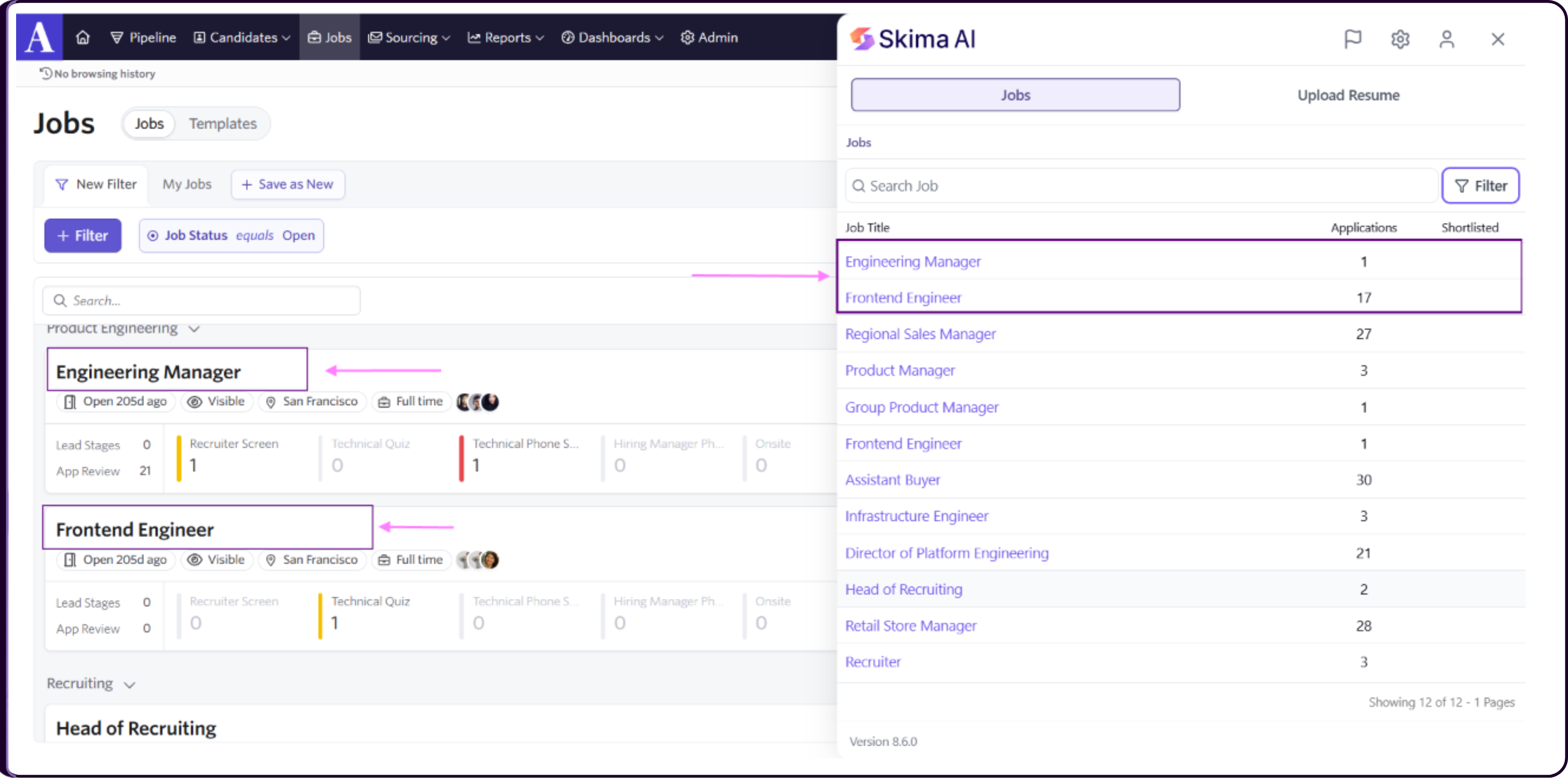
Filter Jobs
Click 'Filter' at the top of the Jobs list to narrow down jobs by Source ID, Job Status, ATS Status, Location, Created At date range, Client, Recruiter, Deleted (toggle to show deleted jobs), Open/Closed status, and any Custom fields configured for your organization. Click 'Apply' to update the list or 'Clear Filters' to reset.
Click on any job title to open the list of applications for that role in your ATS.
You will now be able to view all applications along with key candidate insights directly within the ATS interface, including:
• AI score for each candidate
• Parsed candidate information
• Current application status from your ATS (In Review, Interview, Shortlisted, etc.)Click on any candidate in the applications list to view detailed insights, closely matching the candidate card layout in the Skima AI app:
• AI Score for the candidate
• A DISQUALIFIED tag with Disqualification Reasons listed underneath, if the candidate fails a must-have or must-avoid criterion
• Pros based on the job description and candidate profile
• Current application status, editable directly from the card
• Experience and Education pulled from the parsed resume
• Skills evidence, showing which required skills were found in the resume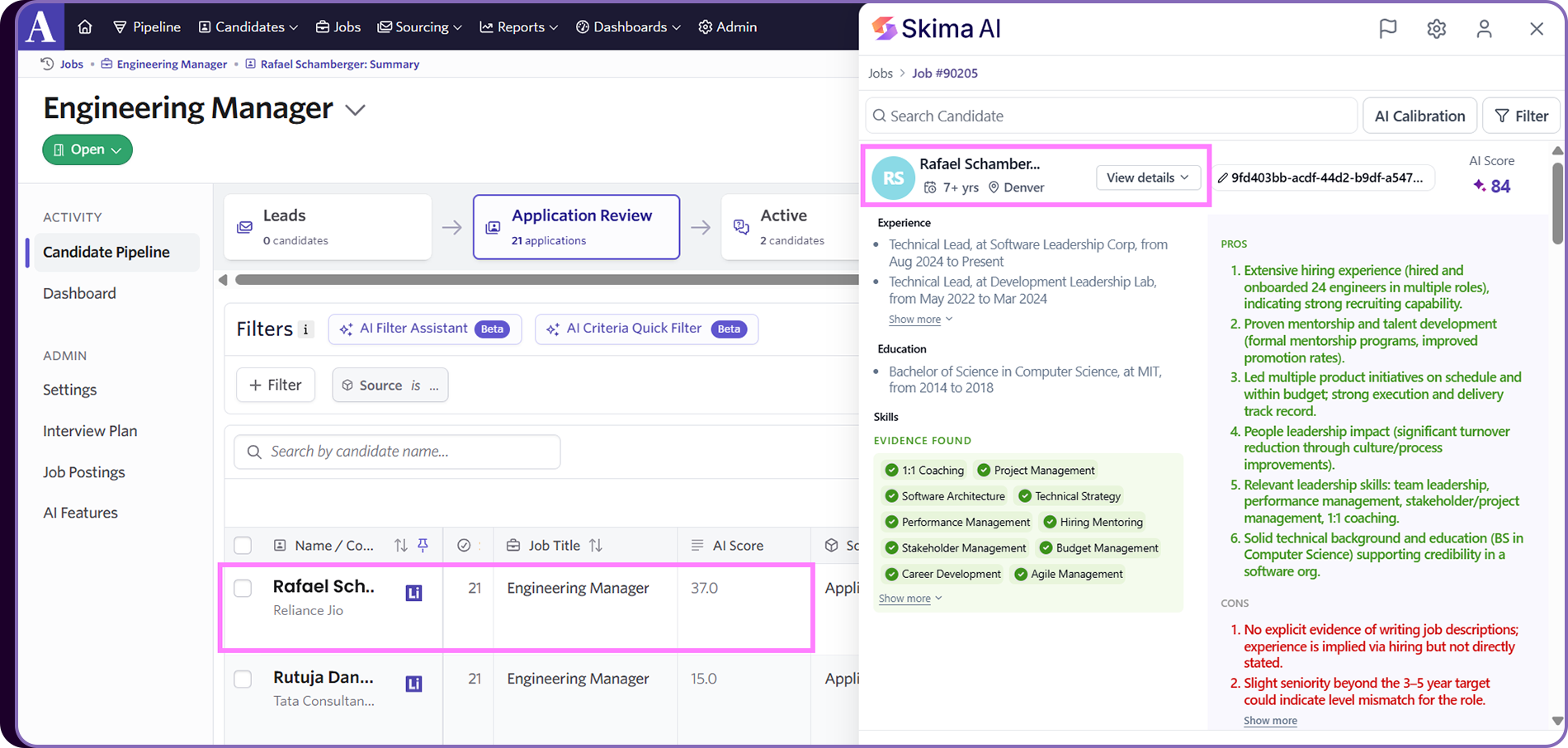
AI Calibration in the Extension
Click 'AI Calibration' at the top of the candidate list to open the same read-only Scoring rubric available in the Skima AI app. The button shows the active rule count, for example AI Calibration 9 rules. The rubric lists every criterion organized by tier, including Must-have (Gates Scoring), Preferred, Nice to have, and Must avoid, with their Critical, Core, Strong, Moderate, Notable, or Minor weight tags. Any overridden compliance-flagged criterion appears with an [Ignored] prefix and an OVERRIDE tag, matching the app.
.png)
Clicking 'Edit & re-score' takes you out of the extension and into the Skima AI app, landing on View JD → Edit Job Description, where you can update the JD and rubric. Refer to the AI Calibration guide for the full rubric editing workflow.
Filter Candidates
Click 'Filter' at the top of the candidate list to narrow candidates by Lead Source, Application Status, Entry Point (All, LinkedIn, Job Posting, Global, ATS, Batches), Discovery method, AI Score range, Screening Questions Filters, and any Custom fields configured for your organization. Click 'Show More Filters' for additional options. Click 'Apply' to update the list or 'Clear Filters' to reset.
- You can also filter these candidates on the basis of their Application Status and Screening Question Answers etc.
Refer:
Application Status Filter
Screening Question Filter
You can also update the candidate's application status directly from your ATS. The extension automatically fetches and reflects the latest application status, ensuring both systems remain in sync.
Send Candidates for Approval
The Hiring Manager Link workflow is also available directly inside the extension, letting you collect stakeholder feedback on candidates without leaving your ATS.
- Select one or more candidates using the checkboxes in the candidate list.
- Click 'Send for Approval' in the bulk action bar at the bottom of the panel.
.png)
- In the Send Candidates for Approval modal, enter the Recipient (Email Address) of the hiring manager or stakeholder.
- Set how long the Feedback Link Expires In. The default is 2 days.
- Choose what candidate status to apply If Selected and If Rejected using the status dropdowns.
- Optionally check 'Hide Candidate's AI score from the reviewer' or 'Hide Candidate's cons from the reviewer' if you want the reviewer to evaluate the candidate without seeing that information.
- Click 'Generate Link'.
A confirmation screen will show the generated approval link. Click 'Copy' to copy it, then share it with the hiring manager. Click 'Done' to close the modal.
Refer to the Hiring Manager Link guide for the full workflow, including what the reviewer sees and how their feedback updates the candidate's status
Sidebar Shortcut (Quick Access Setup)
You can configure a keyboard shortcut to instantly open the Skima AI extension sidebar without clicking on the extension icon. This helps speed up candidate review, especially during high-volume hiring.
Go to 'Settings' → 'Preferences' → Sidebar Shortcut. The current shortcut is shown, or 'Not set' if none has been configured yet. Click 'Change' to set or update it.
How to change the shortcut:
- Click the Change link.
- This opens the Chrome Extensions Shortcuts page.
- Find this extension in the list.
- Click the edit icon next to the command.
- Press your preferred keyboard shortcut and save.
Example: Alt + Shift + S
Once set, you can open the Skima AI sidebar instantly using your keyboard shortcut from anywhere inside your ATS. This removes extra clicks and helps you stay focused during screening and review.
You can configure a keyboard shortcut to instantly open the Skima AI extension sidebar without clicking on the extension icon. This helps speed up candidate review, especially during high-volume hiring.
Set Your Shortcut
- Click on the Skima AI Extension icon in Chrome
- Open 'Settings' → 'Preferences'
- Navigate to 'Sidebar Shortcut'
- Click on 'Change'
Configure in Chrome
- You will be redirected to the 'Chrome Extensions Shortcuts' page
- Find 'Skima AI Extension' in the list
- Click the edit icon next to the command
- Enter your preferred keyboard shortcut (example: Alt + Shift + S)
- Save the changes
Once set, you can open the Skima AI sidebar instantly using your keyboard shortcut from anywhere inside your ATS. This removes extra clicks and helps you stay focused during screening and review.
Downloading Resumes Directly From Any Domain
The Chrome extension allows you to directly download resumes from supported job platforms and ATS systems.
Go to 'Upload Resume' tab
Enable the option to 'Auto Upload Resumes' check box.
This will ensure any resume that is downloaded from a supported domain, is automatically uploaded to Skima for parsing and scoring.
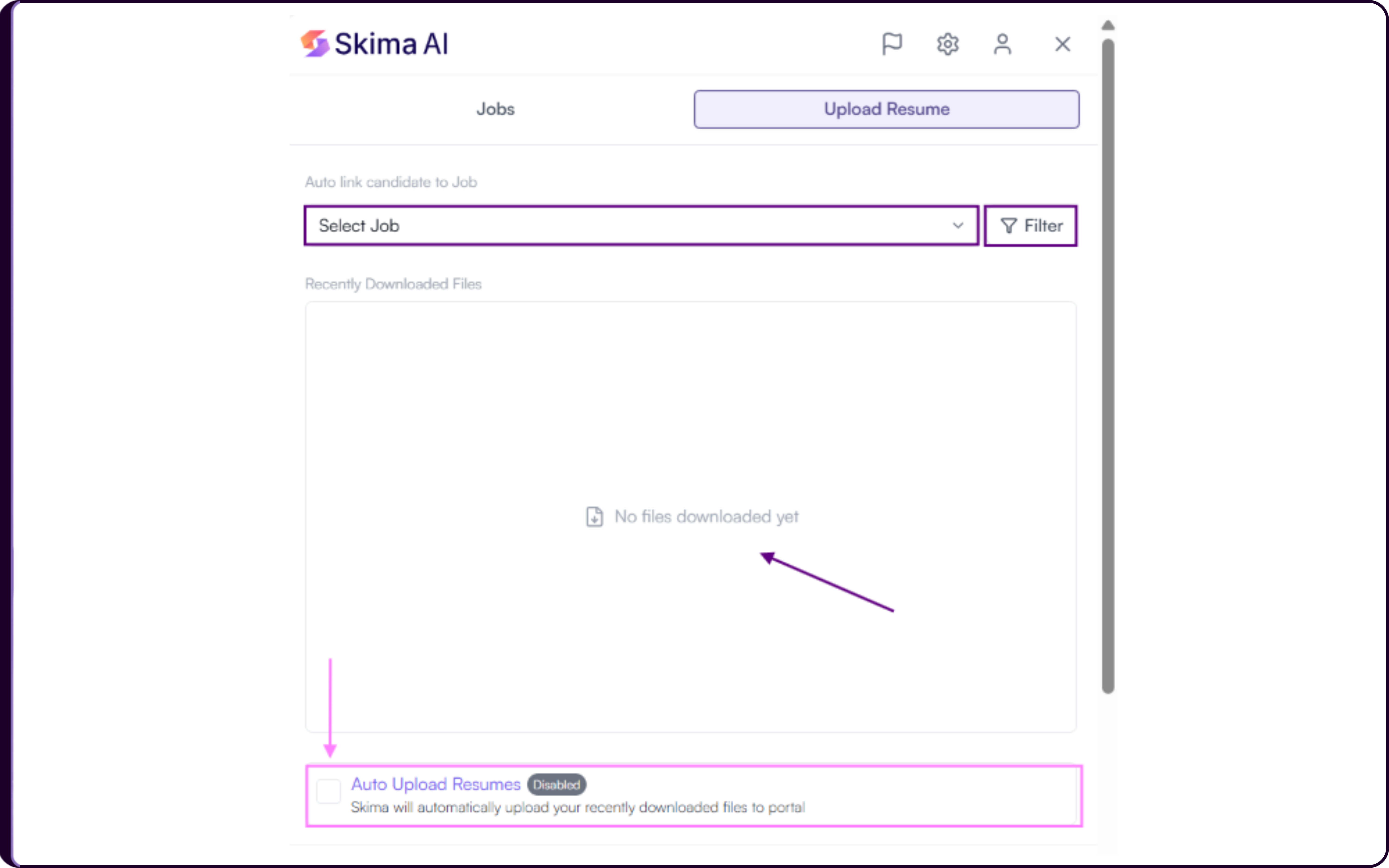
Make sure to select the job from the dropdown you want to link the downloaded candidates automatically to be scored.
This enables you to source candidates from multiple platforms and have resumes processed in Skima without manual uploads.
The extension currently supports resume downloads from the following domains:
• Zoho Recruit: recruit.zoho.in, recruit.zoho.com
• ADP Workforce: workforcenow.adp.com
• Naukri: naukri.com
• Wellfound: wellfound.com
• Linkedin CDN: licdn.com
• Indeed: indeed.com
• Linkedin: linkedin.com
• Bamboo HR: bamboohr.com
• Found It: foundit.in
• Manatal: app.manatal.com
• Lever: hire.lever.co
• Paycom: paycomonline.net
• Teamtailor: app.teamtailor.com
• Paylocity: talent.paylocity.com, go.paylocity.comOnce a resume is downloaded from any supported domain, it will automatically be uploaded and processed in Skima for the Job you have selected in your Extension. You can then view candidates parsed details and AI scoring inside Skima.
ATS Sites
Go to 'Settings' → 'ATS Sites' to manage which ATS pages the extension is enabled on. This is separate from the resume download domains above and controls where the extension panel itself appears inside your ATS.
Each enabled ATS shows its pages individually, for example Show Jobs and Show Job Applications, each with an Enabled status.
Contact support@skima.ai to add more ATS pages. New ATS pages are not self-serve and require our team to enable them for your account.
Request your domain
If you download resumes from a platform that is not currently supported, you can request domain access.
In Chrome Extension
Go to 'Settings'
Scroll down to 'Enabled Auto Upload Applications'
View all the domains on which 'Auto Upload Applications' is switched on. Toggle off for any site you wish not to auto download applications from.
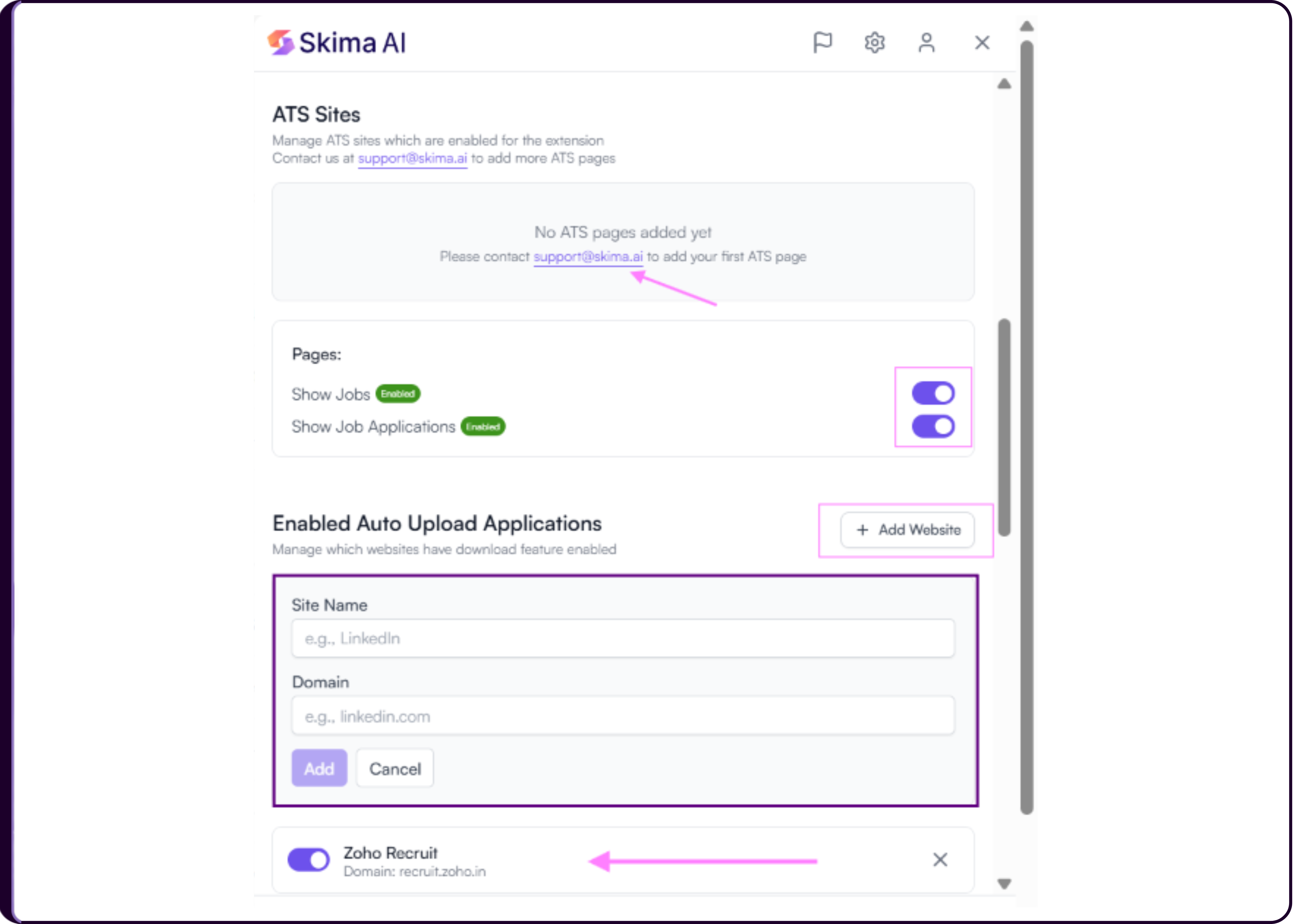
To add a new website: Click on '+ Add Website' button on the right of the header.
Add the 'Site Name' and 'Domain' eg:
• Site name - Linkedin
• Domain - linkedin.comClick on 'add' button to add the website.
Our team will review and enable resume download support for the requested domain so resumes can be automatically uploaded to Skima AI using the Chrome extension.
Reach out to support@skima.ai as shown in the image, if your ATS page is not yet connected to your extension.
In Skima AI App
Go to 'Settings'. Navigate to 'Other Integrations' and go to Chrome Plugin Domains
Click on 'Request Domain' and provide the details of Domain from which you want to download resumes
• Website name
• Domain URL
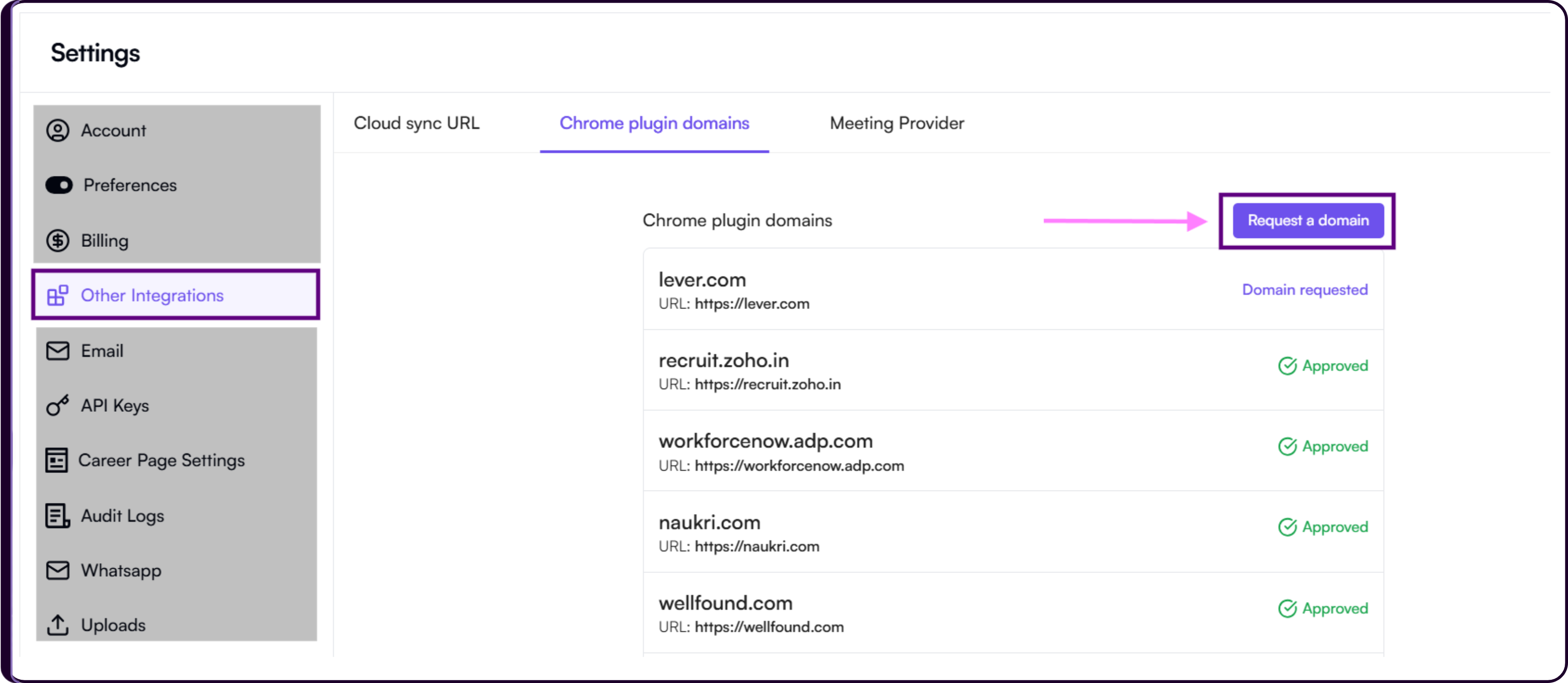
- Submit the request. Our team will review and enable resume download support for the requested domain so resumes can be automatically uploaded to Skima using the Chrome extension.
You are all set
You can now screen, review, and manage candidates directly inside your ATS using the Skima AI Chrome Extension, helping you streamline your hiring workflow and make faster, more efficient hiring decisions.