
Zoom Integration
Integrating Zoom with Skima AI allows recruiters to schedule and manage interviews directly from the platform without switching between tools.
Here is a step-by-step guide to connecting Zoom and using it inside your interview workflow.
Connecting Your Zoom Account
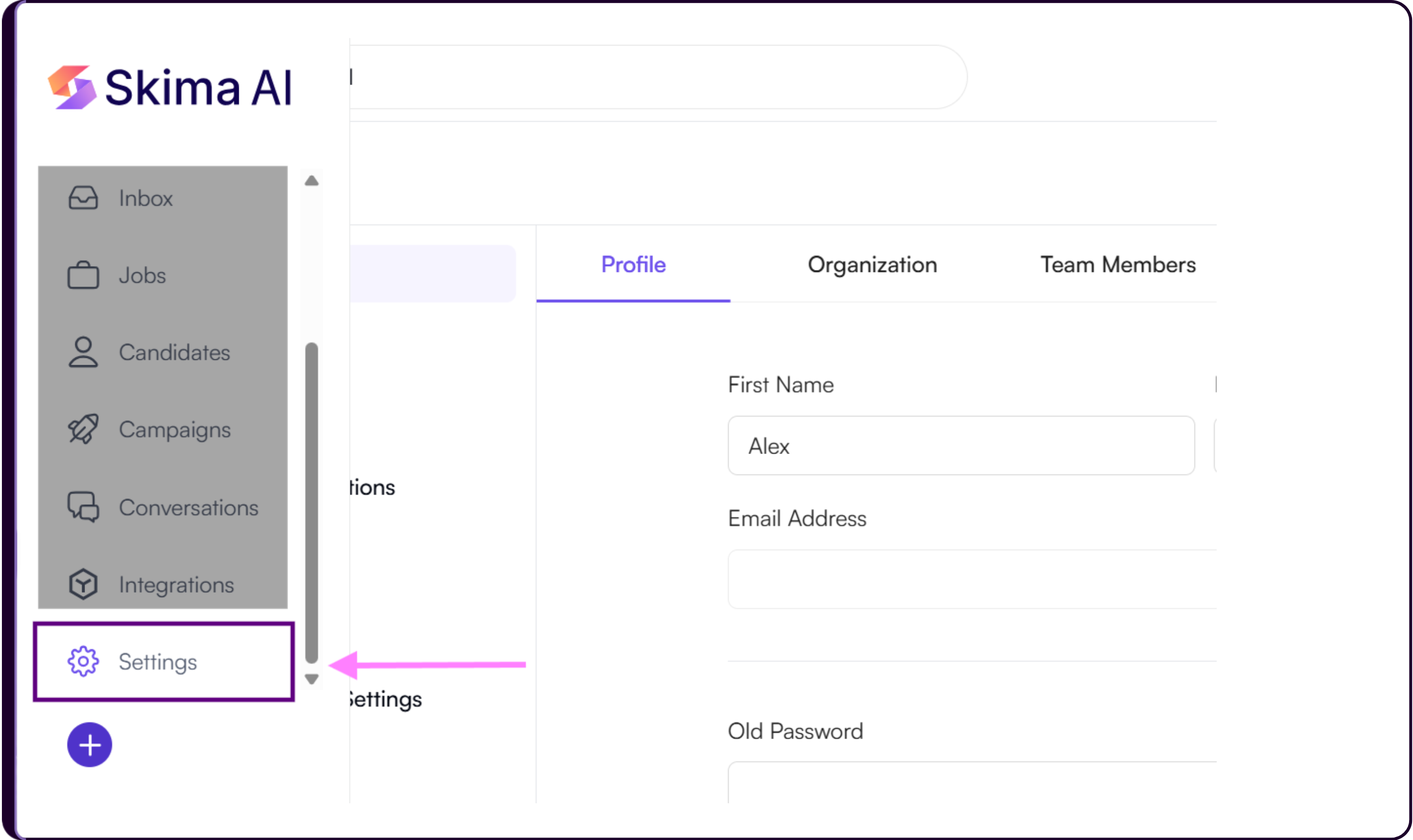
- After logging in to your Skima AI account, go to 'Settings' from the left sidebar.
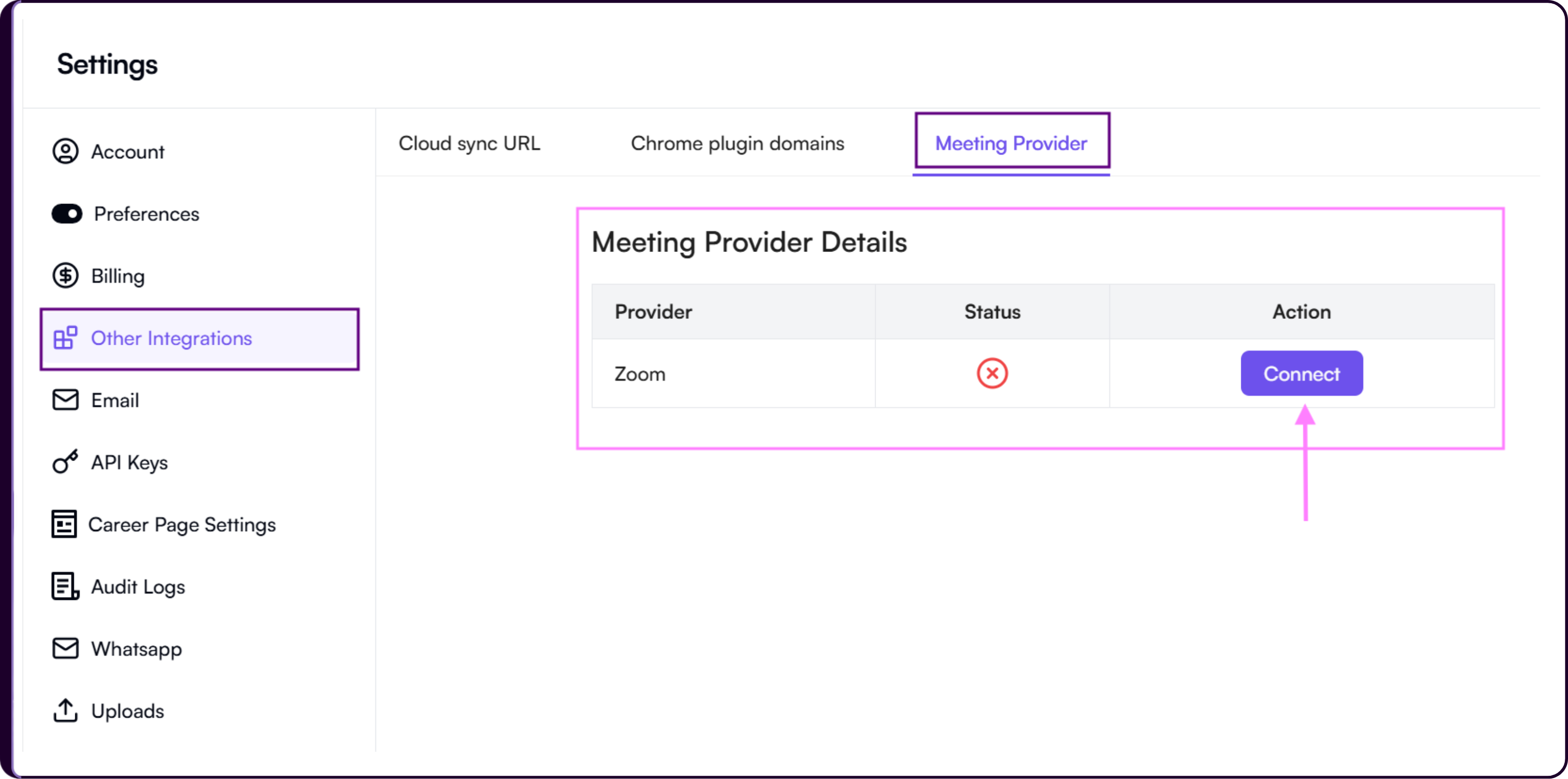
Inside Settings, open 'Other Integrations' and locate Zoom under the 'Meeting Provider' section. You can also view the current connection status here.
Click 'Connect' next to Zoom under the Actions column.
- You will be redirected to Zoom’s sign-in page. Enter your Zoom admin credentials and click 'Sign In' to allow Skima AI to connect with your Zoom account.
Once the connection is completed, Zoom will be available for interview scheduling inside Skima AI.
Grant Access to Skima AI on Zoom
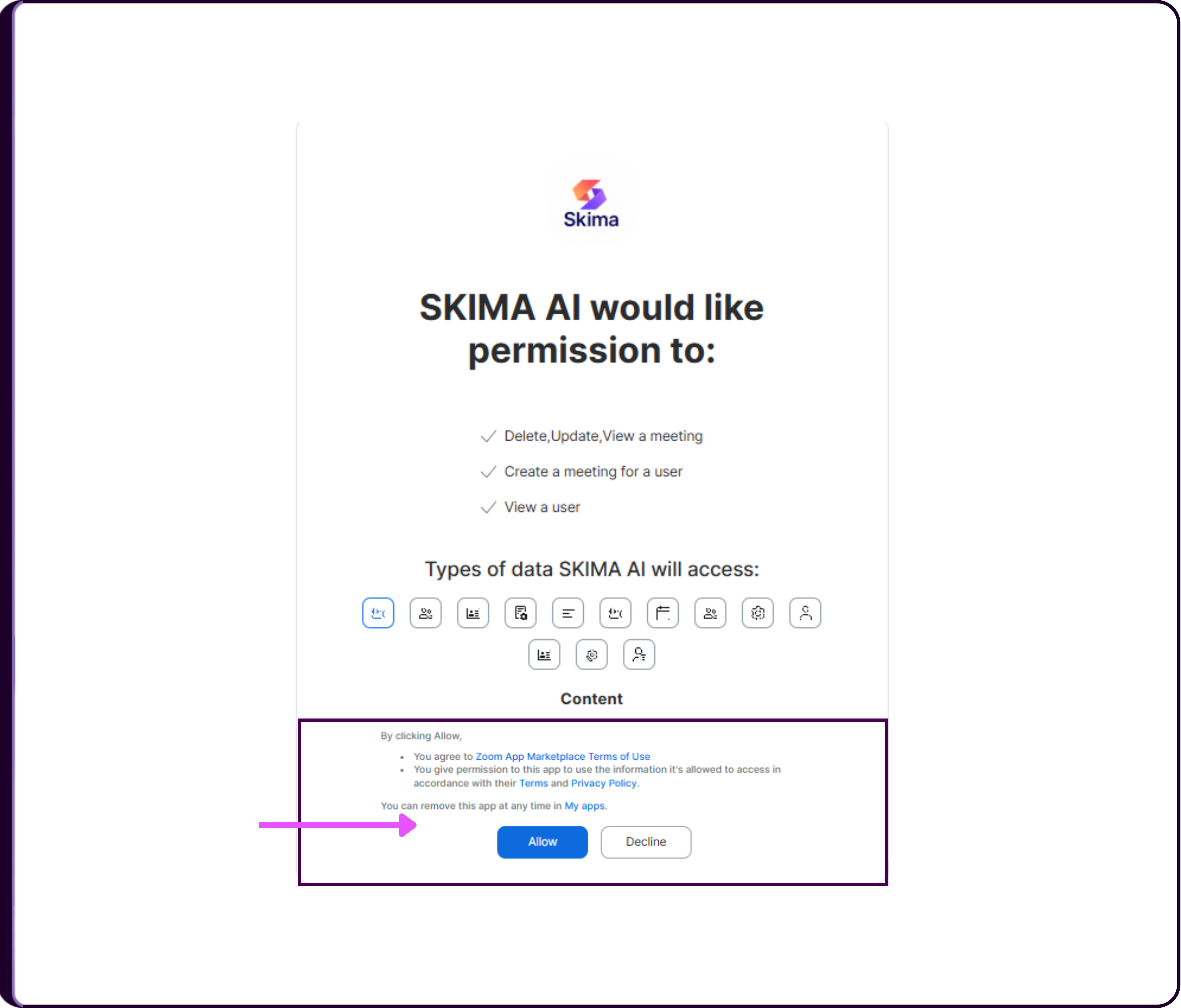
- After signing in, Zoom will show a permissions screen asking you to authorize access.
This step is required so Skima AI can securely connect with your Zoom account and create meetings on your behalf.
Skima AI requests the following permissions: a. Create a meeting for a user
b. View a userClick 'Allow' to continue.
Once approved, you will be redirected back to Skima AI to complete the setup.
Disconnecting Your Zoom
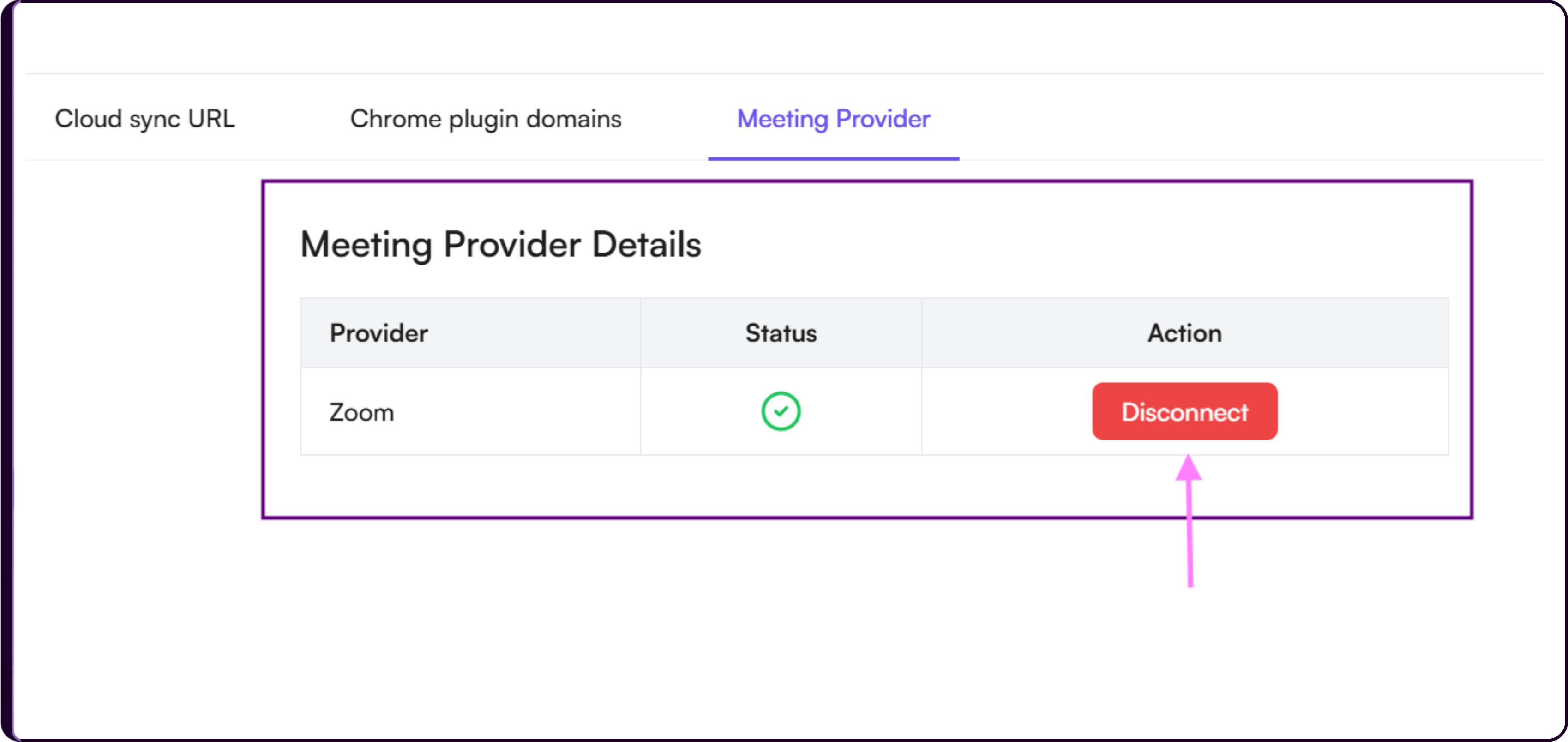
If you want to disconnect your Zoom account from Skima AI, go back to 'Settings' in the left sidebar.
Open 'Other Integrations' and locate Zoom under the Meeting Provider section.
Click 'Disconnect' next to Zoom.
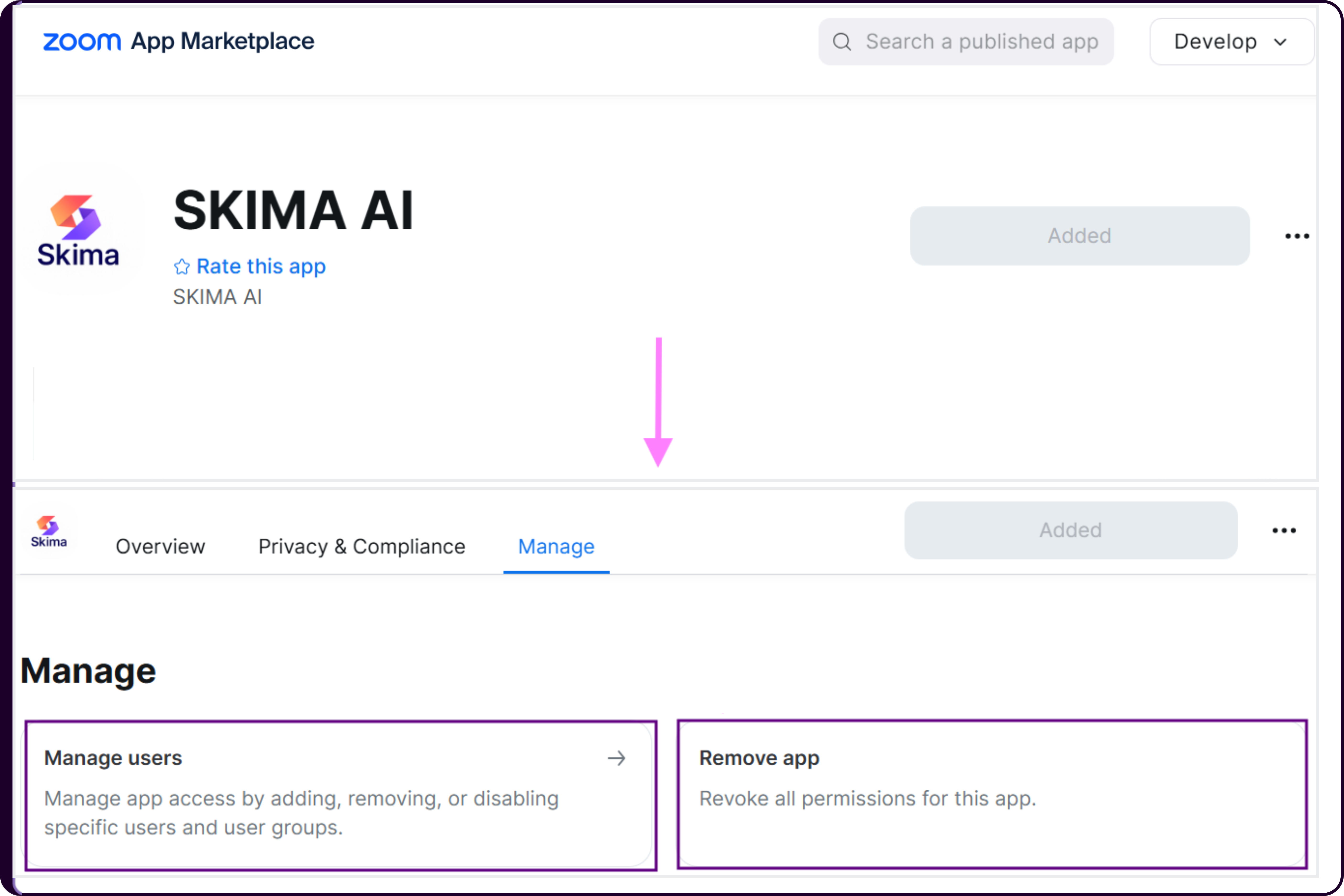
Disable Zoom Connection from Zoom Marketplace
You can also remove Skima AI’s access directly from your Zoom account settings.
Go to Zoom App Marketplace
Search for 'Skima AI'.
Open the app and scroll down to the 'Manage' section.
- From here, you can:
- Manage user access permissions
- Revoke all app permissions granted to Skima AI
Zoom Conditions & Limitations
Skima AI gives you access to Zoom-related interview workflows without adding separate platform restrictions. However, your Zoom plan limitations will still apply.
Here is what to keep in mind:
| Zoom Plan | What You Can Do | Limitations |
|---|---|---|
| Free | Schedule and host meetings through Skima AI | Group meetings end after 40 minutes |
| Pro or Higher | No major limitations from Skima AI’s side | Subject to Zoom’s own terms of service |
Skima AI does not block Zoom functionality, but Zoom’s own account limits, such as meeting duration, still apply.
If a meeting ends because of a Zoom free plan limit, you will need to upgrade your Zoom account.