

Candidates
The Candidates page is the central workspace for managing every profile in your talent database. From here, recruiters can search, filter, segment, upload, and take action on candidates without jumping between multiple screens.
Navigate to the Candidates Page
- From the left sidebar, click on 'Candidates'.
This opens the Candidates page where your full talent database is displayed and ready to work with.
Page Header
The header section of the Candidates page contains the primary controls for searching, filtering, segmenting, and uploading candidates.
Search Bar
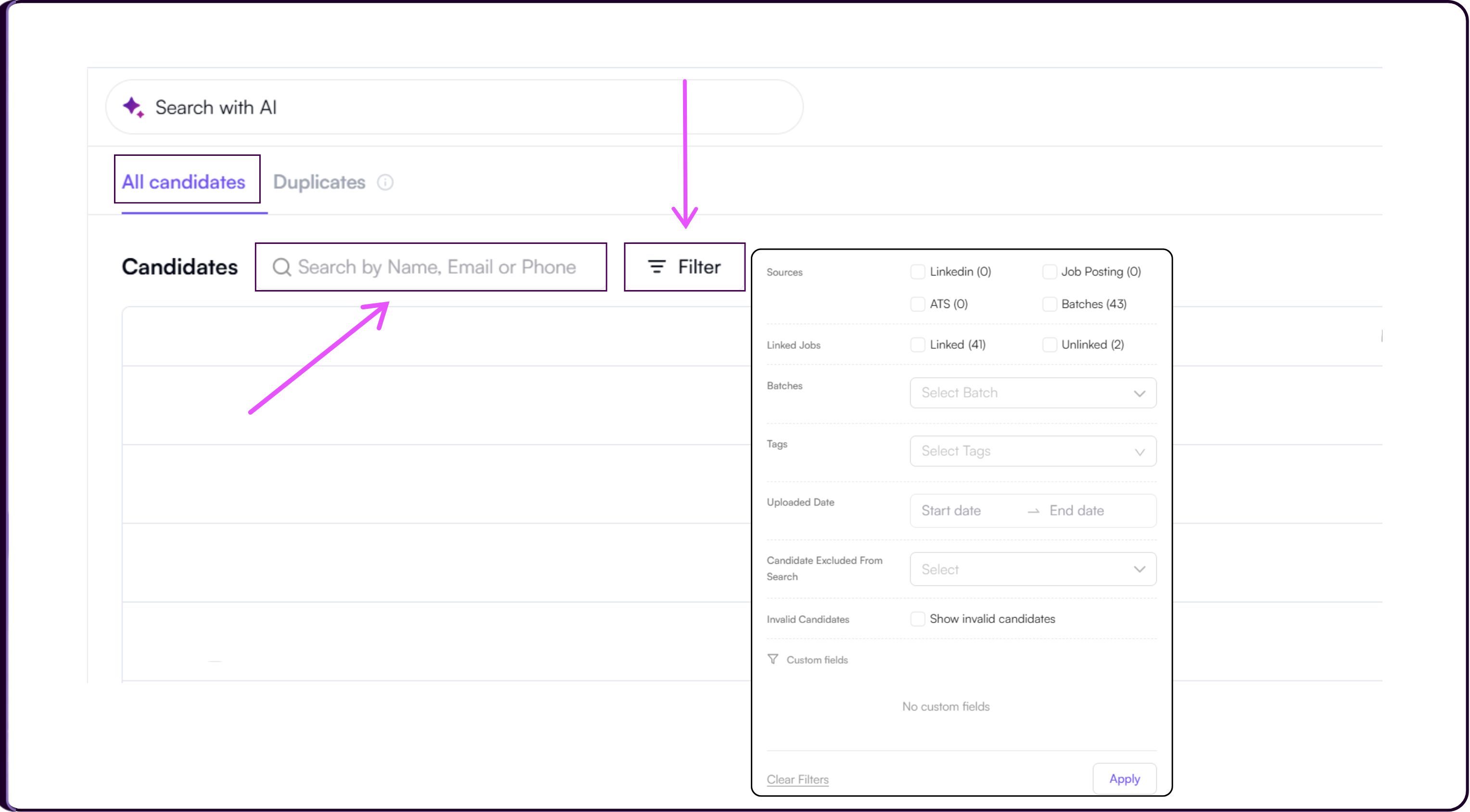
The search bar lets you locate candidates quickly by searching their name, email address, or phone number.
Filter
Clicking on 'Filter' opens the filtering panel where you can narrow down candidates using multiple conditions across five filter categories.
Sources lets you filter candidates by how they entered Skima AI. You can select from LinkedIn, Job Posting, ATS, or Batches to focus on candidates from a specific sourcing channel.
Linked Jobs lets you view candidates who are already connected to a job or identify those who are still unlinked and available for assignment.
Batches and Tags let you filter by the specific upload batch or internal tag applied to a candidate.
Uploaded Date filters candidates based on when they were added to the database.
Additional options include filtering for candidates excluded from search, showing invalid candidates, and applying any custom fields configured for your organization.
Once your conditions are set, click 'Apply' to update the list or 'Clear Filters' to reset.
Candidate Segments
Clicking on 'Candidate Segments' allows recruiters to create structured groups of candidates for campaign targeting, reporting, or pipeline management without needing to link them to a specific job first.
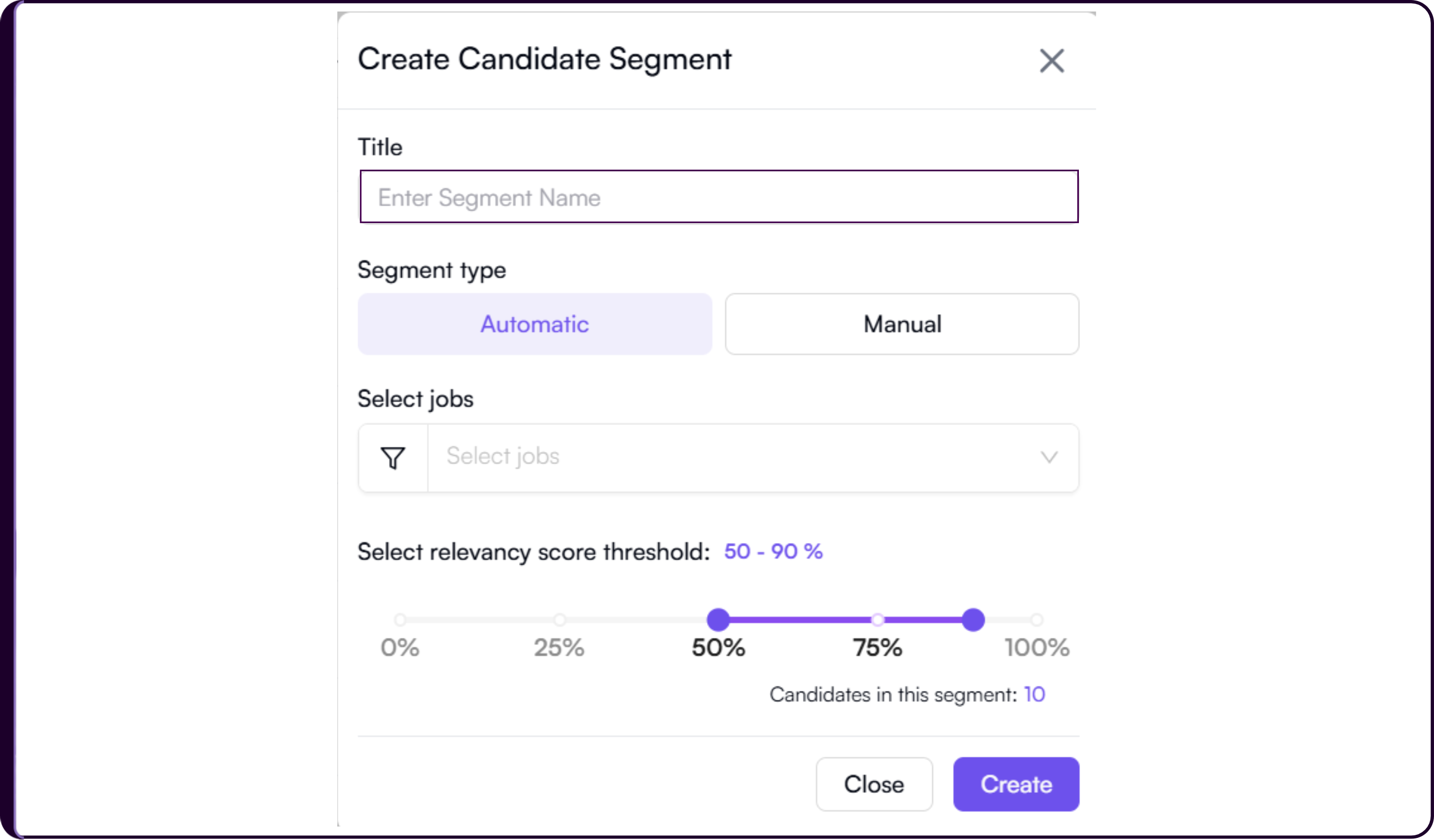
Clicking this button opens the Create Candidate Segment modal where you can configure:
- Title for the segment
- Segment Type as either Automatic or Manual
- Select Jobs to associate jobs with the segment if needed
- Relevancy Score Threshold between 50% and 90% to control which candidates qualify
- A live count of Candidates in this Segment based on the criteria set
Once configured, click 'Create' to save the segment or 'Close' to exit.
Learn more about how candidate segmentation works: Segment Candidates Without Linking to Jobs
Upload Candidates
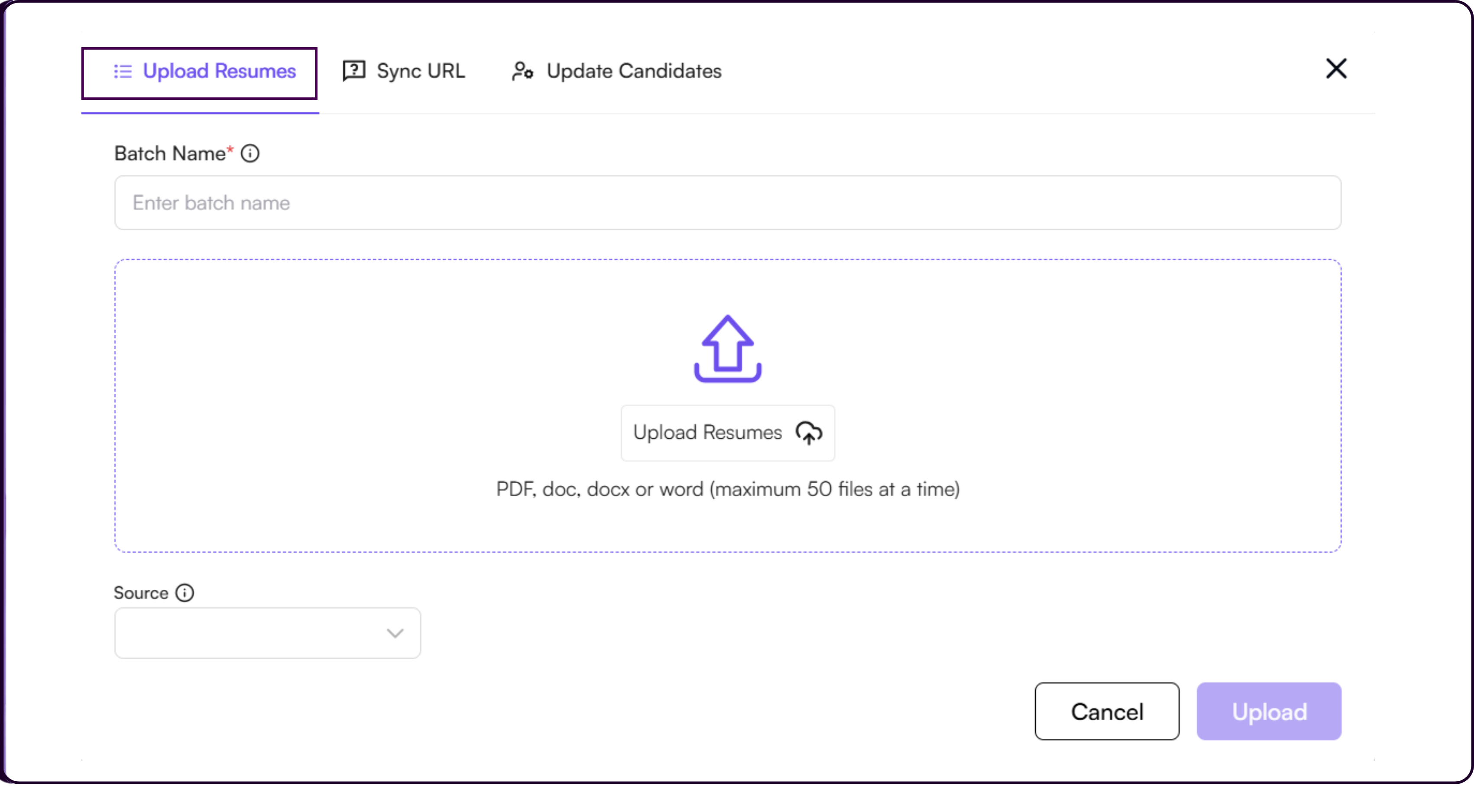
Clicking on 'Upload Candidates' opens a modal with three options for bringing candidates into Skima AI.
Upload Resumes
Manually upload one or multiple resumes directly from your system. Skima AI parses each resume and creates a structured candidate profile automatically.
For the detailed upload guide, refer to the Upload Candidates section in the Create Job documentation.
Sync URL
This option lets you connect a cloud folder such as a Google Drive link where your resumes are stored. Skima AI pulls candidates from the folder either as a one-time sync or on a recurring basis.
- Enter the URL Name and Source.
- Optionally select a Job to associate the incoming candidates with a specific role.
.png)
- Paste the cloud folder URL into the Paste URL field.
- Select a Sync Frequency of either one-time or recurring. Recurring sync runs automatically every 24 hours.
- Click 'Save' to activate.
Update Candidates
This option allows recruiters to update existing candidate records. The system matches the data in the uploaded file to existing profiles and reflects the changes automatically.
- Click here to download the sample CSV file and format your data accordingly.
.png)
- Click 'Update Candidates' and select your CSV file from your system.
- Only CSV files are accepted, with a maximum of one file at a time.
Candidate Views
The Candidates page offers two display formats. Both views share the same header controls including search, filters, candidate segments, and upload options.
Compact View
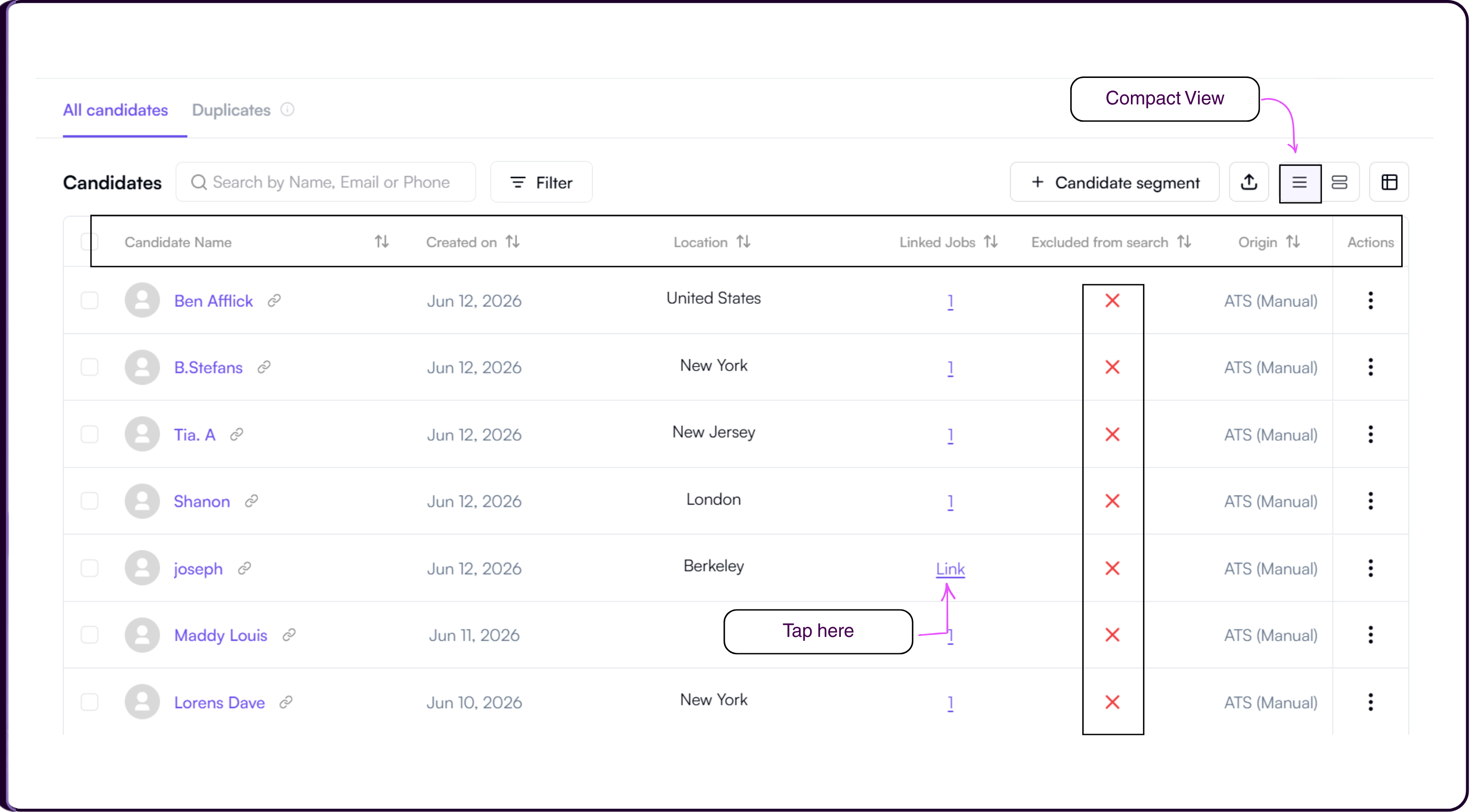
The Compact View displays candidates in a table with the following columns: Candidate Name, Created On, Location, Linked Jobs, Excluded from Search, Origin, and Actions.
Columns can be reordered or removed using the 'Configure Table View' button, which is only available in Compact View.
The columns Candidate Name, Created On, Location, Linked Jobs, Excluded from Search, and Origin each have an ' ↑↓ ' sort icon in the column header. Clicking it toggles the column between ascending and descending order, helping you organize candidates faster without applying a separate filter.
i) Candidate Name is clickable and opens the full candidate profile, which includes:
- Profile with personal information, contact details, skills, and experience
- Resume view of the parsed document
- Linked Jobs showing all jobs the candidate is currently associated with
- Interviews scheduled for the candidate
- Communications log of all outreach activity
- Details, Documents, and additional structured information
ii) Created On shows the date the candidate was added to the database.
iii) Location displays the candidate's location as extracted from their resume.
iv) Linked Jobs shows the number of jobs the candidate is currently linked to. Clicking on the count opens a panel listing each linked job with its title, location, application status, and AI matching score. Each job in this panel can have its application status updated or be unlinked using the three-dots menu.
If no job is linked yet, clicking 'Link Job' opens a modal where you can select a job and optionally add a note before confirming.
v) Excluded from Search displays whether the candidate has been excluded from AI-powered search results. A checkmark indicates they are excluded and will not appear in future searches.
vi) Origin tracks which ATS or source the candidate was pulled from, such as BambooHR or Skima AI's internal upload.
Extended View
The Extended View displays each candidate as a full card showing their name, experience, location, education, and a breakdown of skills evidence found and not found based on job requirements. This view is useful for a richer at-a-glance review of candidate profiles.
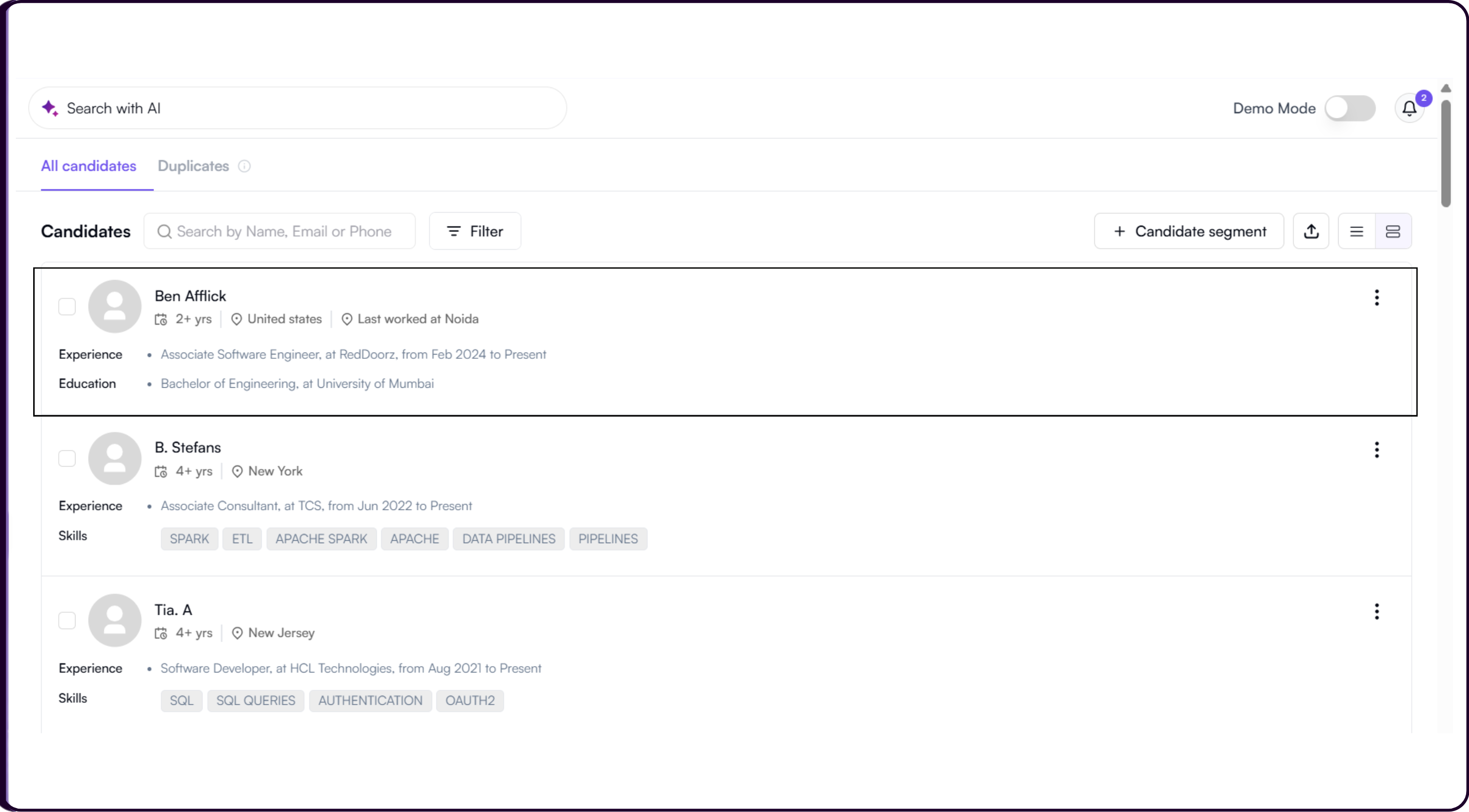
All header controls remain available in this view. The 'Configure Table View' button is not available in Extended View.
Candidate Actions
Each candidate has a three-dots action menu available in both views. From this menu, recruiters can:
- View Candidate Details to open the full candidate profile
- View Custom Fields to review organization-specific fields attached to the candidate
- Add to Segment to place the candidate into an existing segment
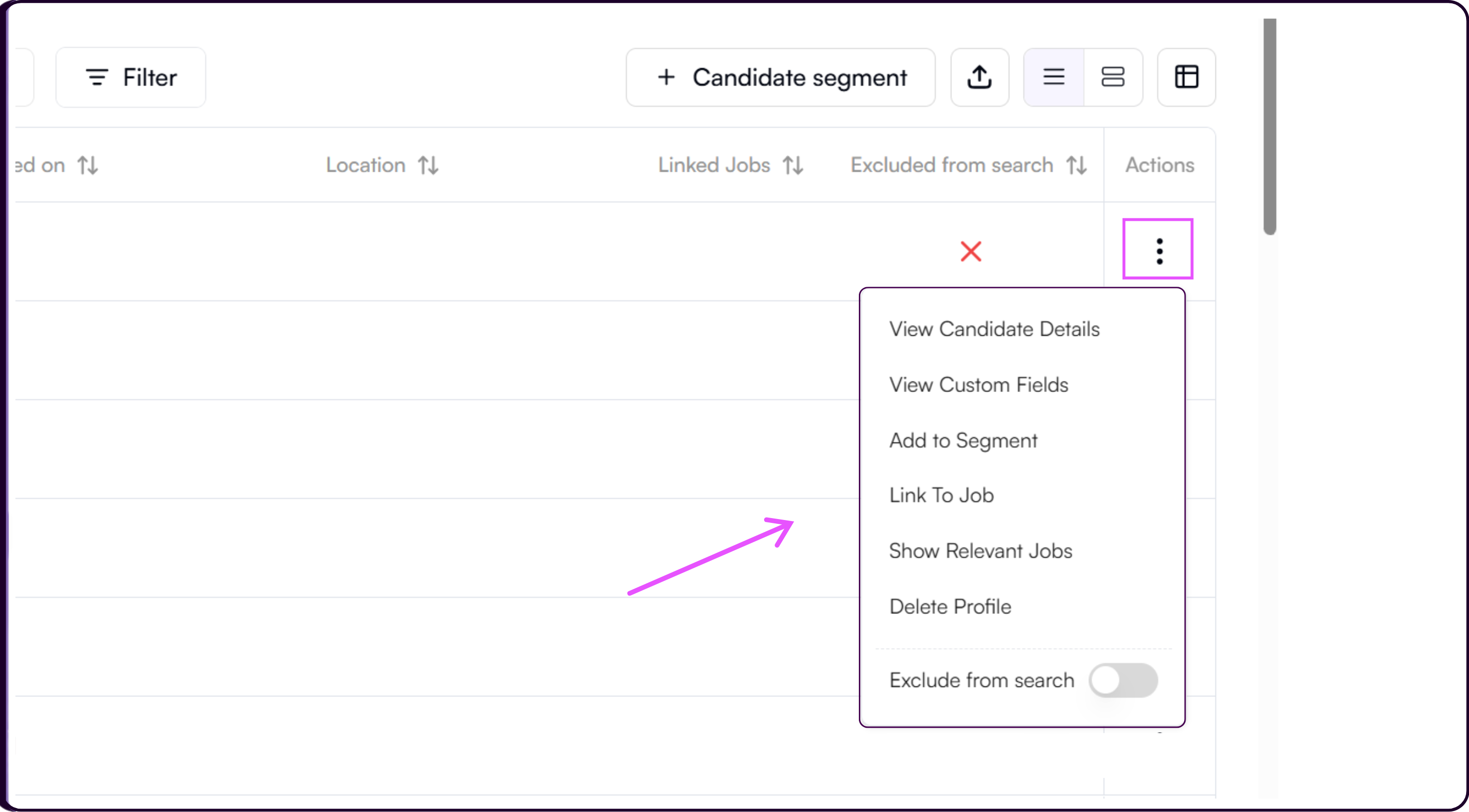
- Link to Job to assign the candidate to a relevant job
- Show Relevant Jobs to run a Reverse Search and surface job matches with AI-generated scores for that candidat
- Exclude from Search to remove the candidate from appearing in AI-powered search results. Toggling this on a single candidate from the actions menu excludes only that profile.
- Delete Profile to permanently remove the candidate from the database
Bulk Actions
To perform actions on multiple candidates at once, select the candidates using the checkboxes and use the Bulk Actions button that appears in the header.
Available bulk actions include Link to Job, Create Segment, Add to Segment, and Exclude from Search.
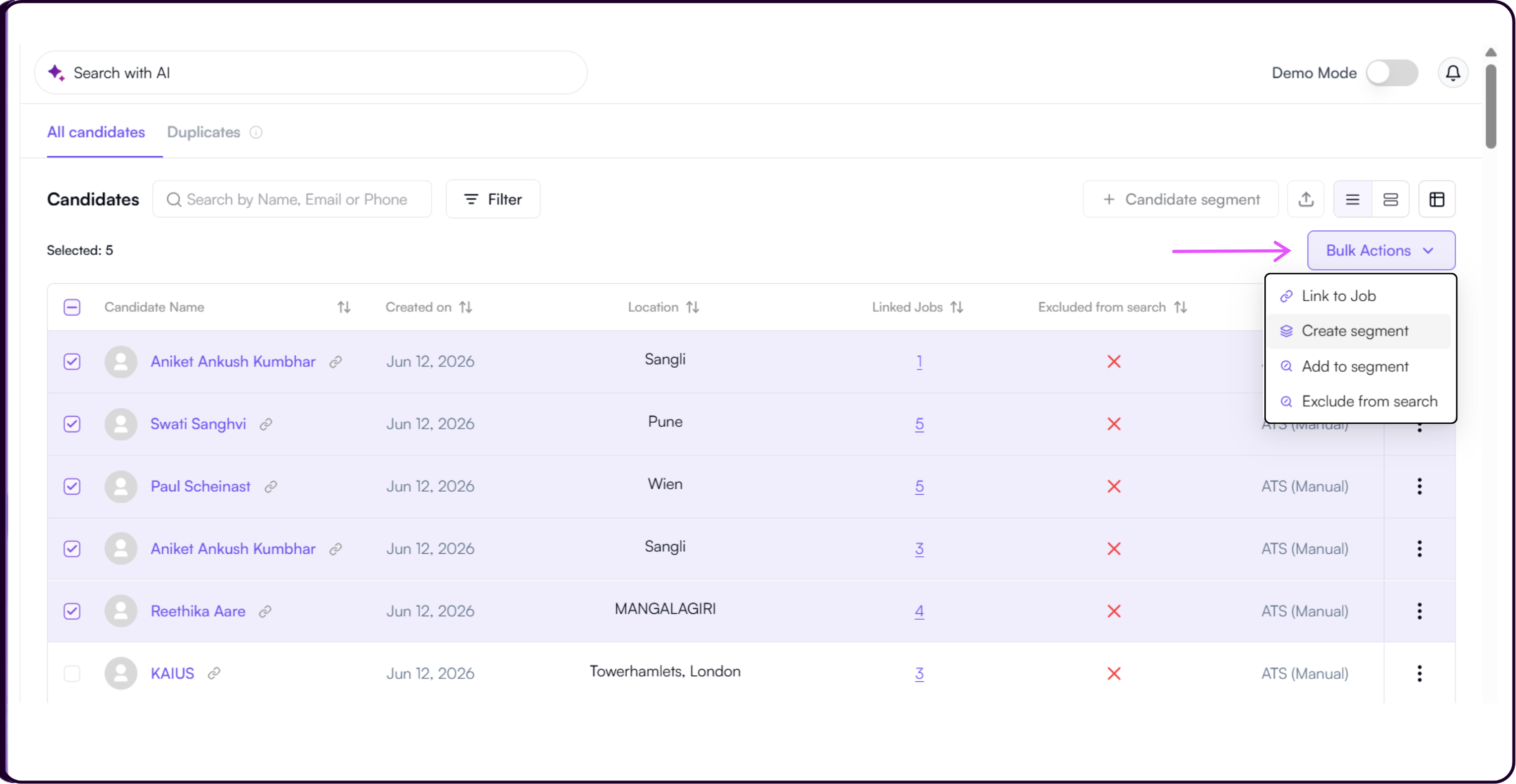
Add to Segment opens the Add Candidate to a Segment modal. It confirms the number of candidates being added and lets you select the target segment from a dropdown. Click 'Add' to confirm or 'Cancel' to exit.
Exclude from Search in bulk applies the exclusion to all selected candidates at once, removing them from future AI-powered search and rediscovery results across the platform.
Keeping Your Database Clean
As your candidate database grows across uploads, ATS syncs, and Chrome Extension imports, duplicate profiles can enter the system. Skima AI automatically detects these and flags them for your review before they clutter your pipeline.
Refer to the Duplicate Candidates guide to learn how to review, merge, and resolve duplicate profiles across your database.